How to Create and Manage Purchase Orders
Step 1: Log in to the VAIRKKO platform.
Step 2: Click admin in the upper right-hand corner to access the administrative area.
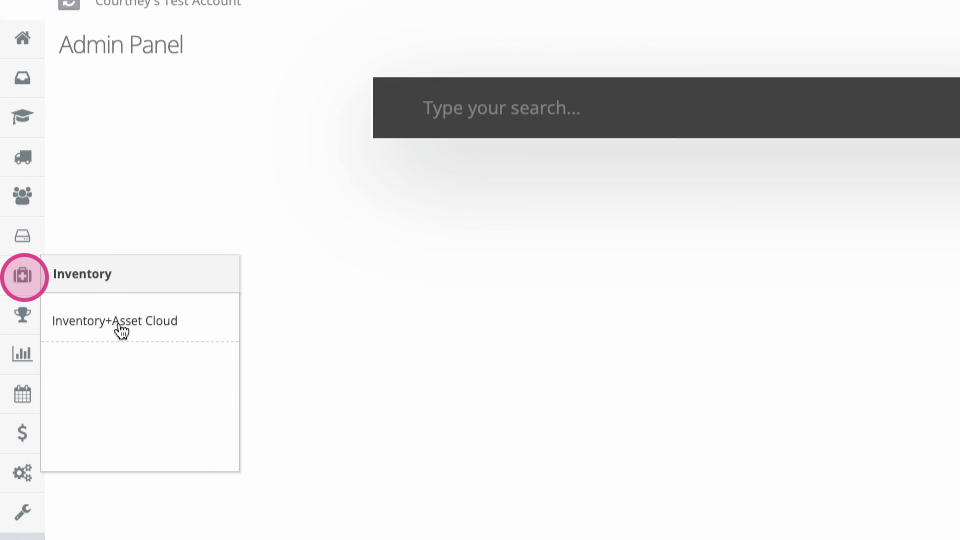
Step 3: Navigate to the inventory and asset cloud area.
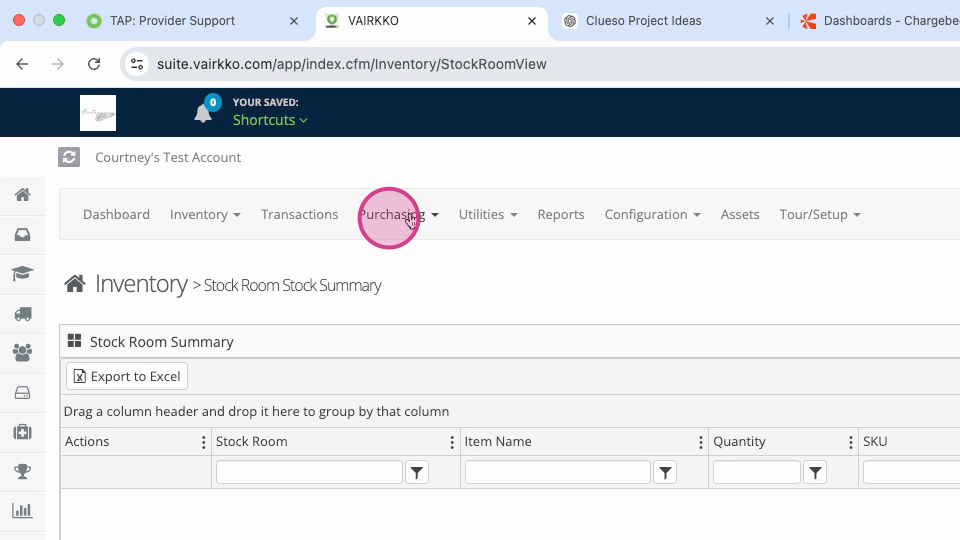
Step 4: At the top of the screen, click purchasing.
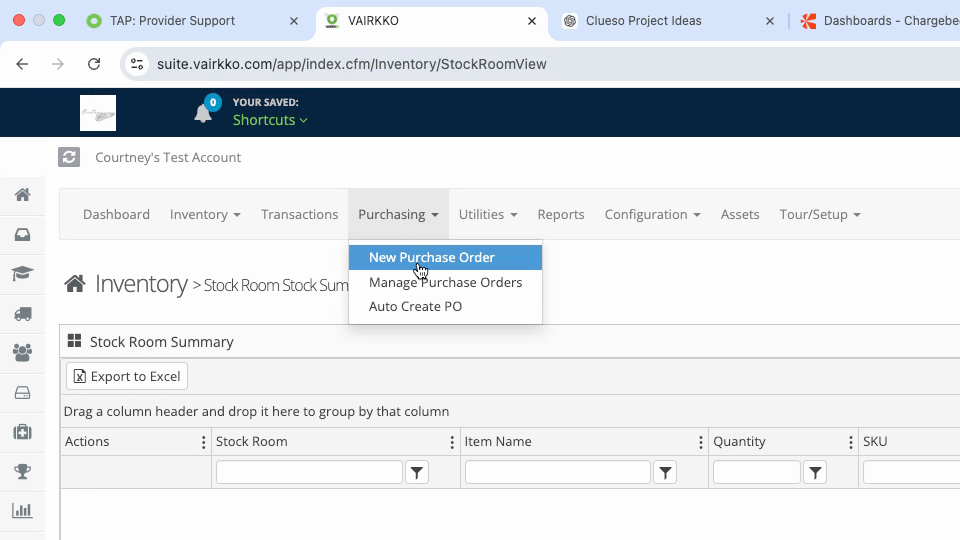
Step 5: Select new purchase order.
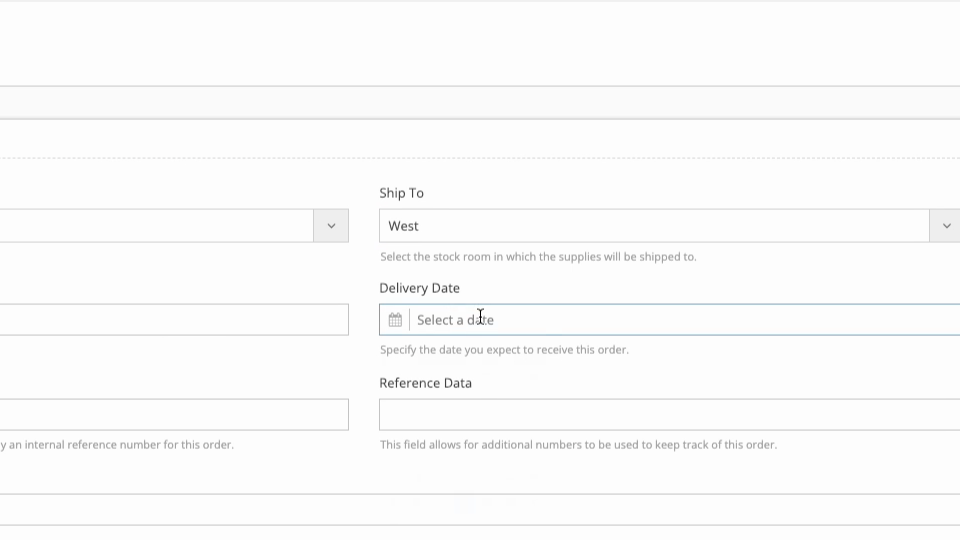
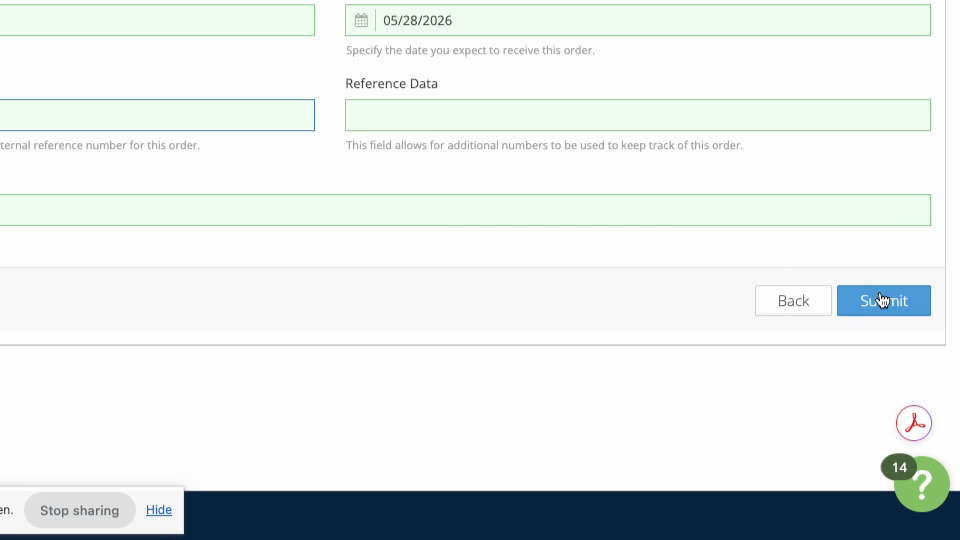
Step 6: Fill in the required purchase order details.
Step 7: Click submit to create the new purchase order.
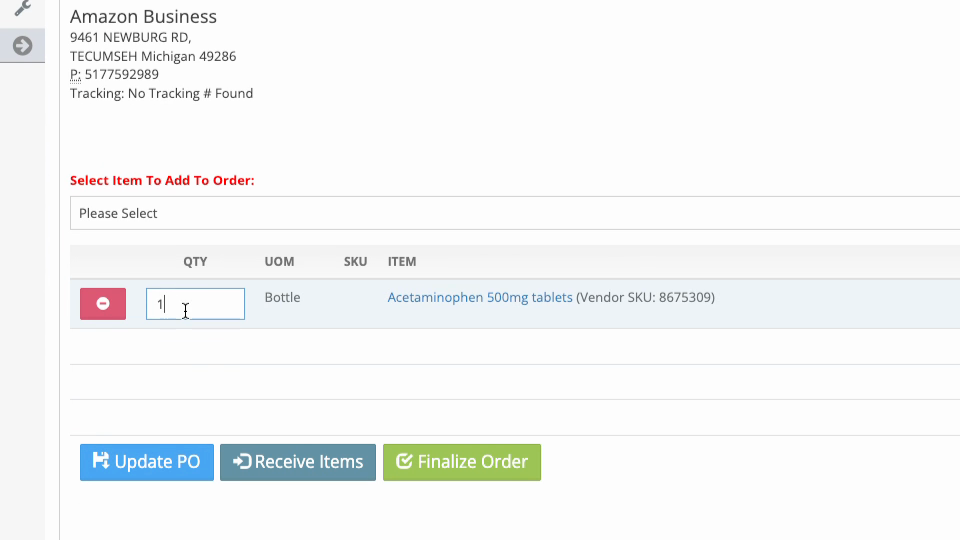
Step 8: Add items to your purchase order by selecting them from the dropdown menu.
Step 9: Update the PO if you need more than one quantity for an item.
Step 10: Click finalize order to complete the purchase.
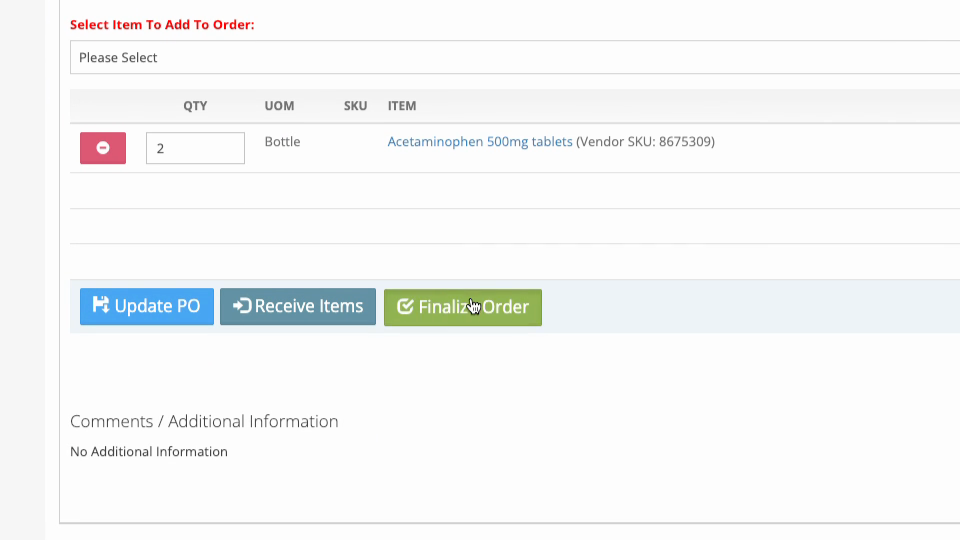
After finalizing, you’ll be able to edit, print, or email the purchase order directly from the system.
Managing Existing Purchase Orders
Step 1: Go back to the purchase area.
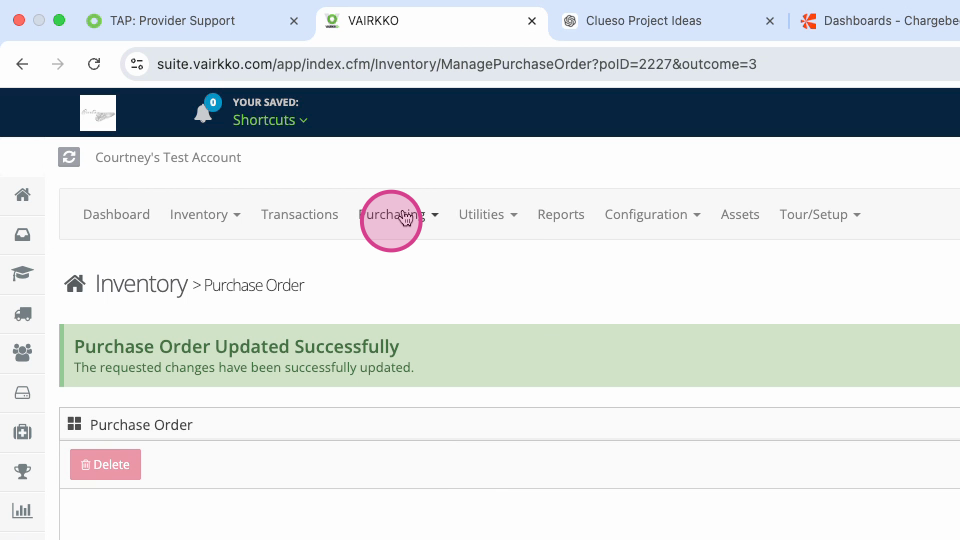
Step 2: Select manage purchase orders.
Step 3: Choose the purchase order you want to manage.
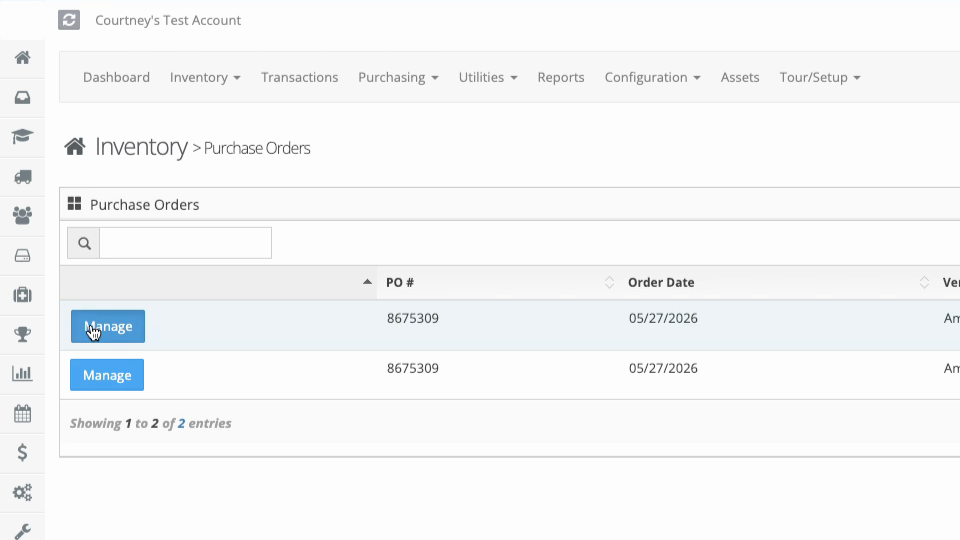
Step 4: Edit the details, print, or delete the order as needed.