Assets - Condition Manager
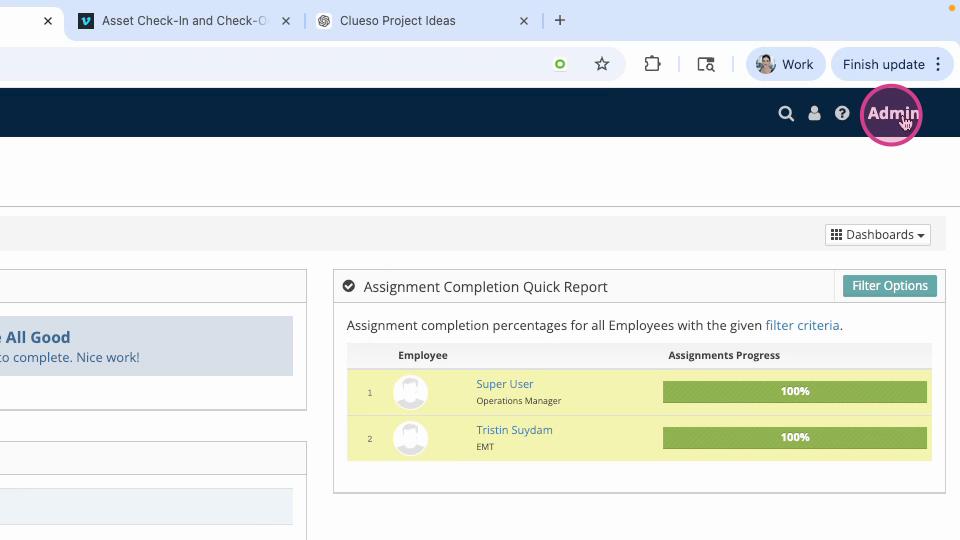
Step 1: Log in to the VAIRKKO platform. Click admin in the upper right corner to access the administrative side.
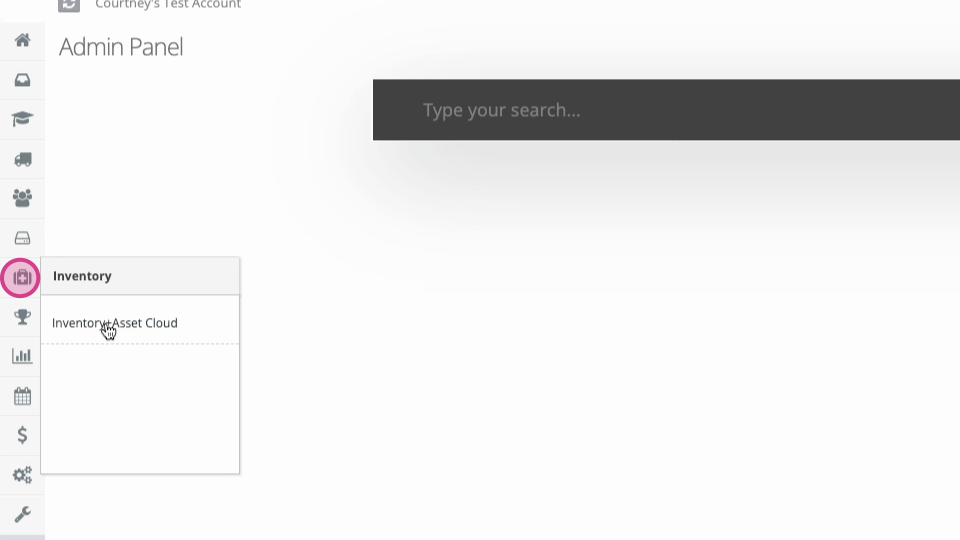
Step 2: In the administrative toolbar, select Inventory and then Asset Cloud.
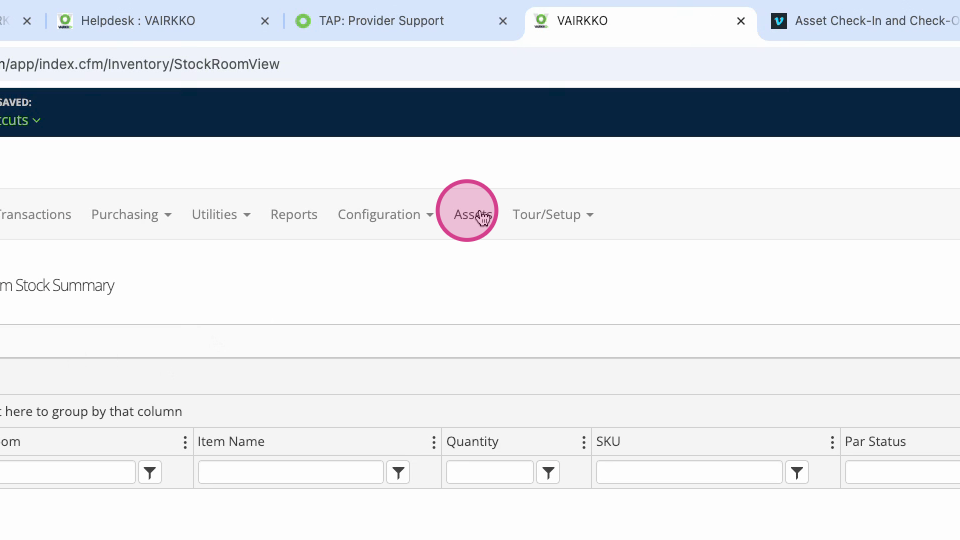
Step 3: Open Assets from the in-app menu.
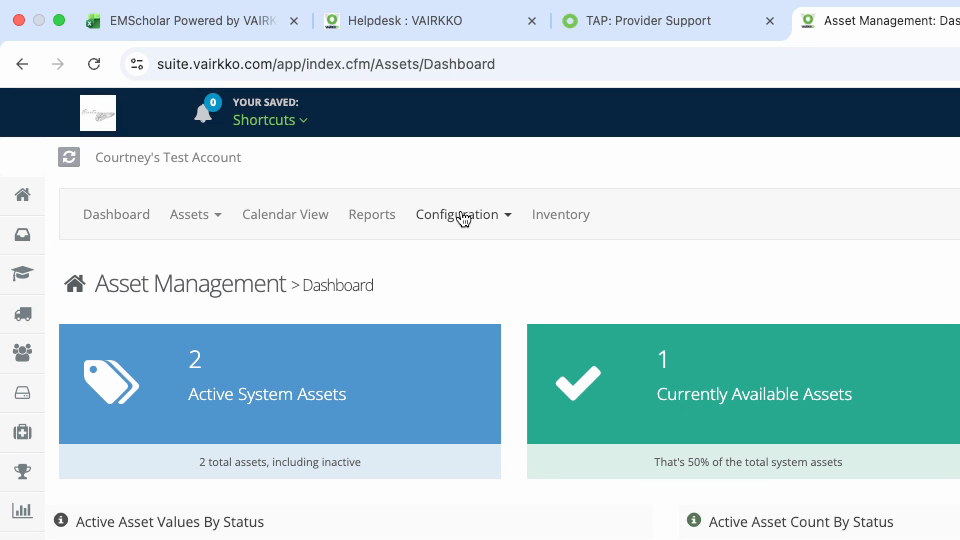
Step 4: At the top, click Configuration.
Step 5: Select Condition Manager.
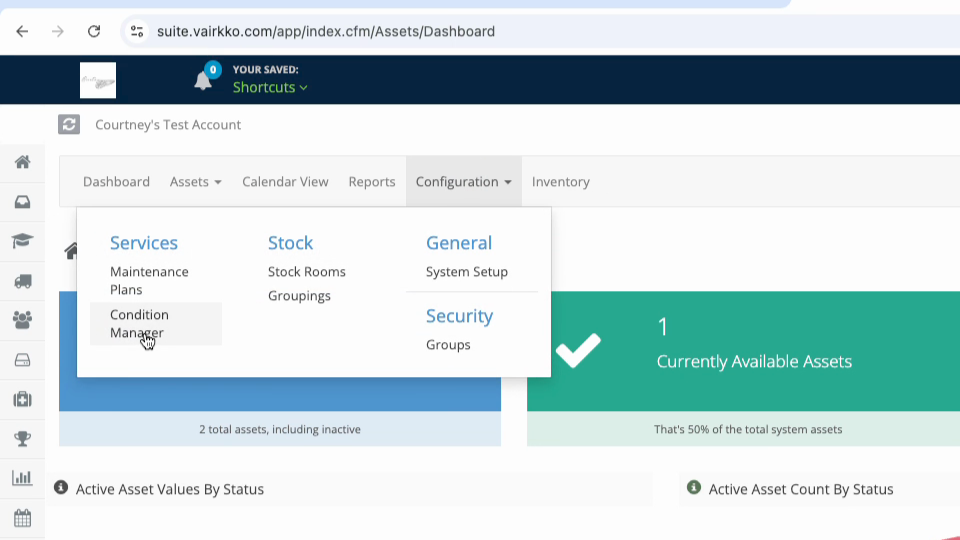
Step 6: Click Add to create a new condition.
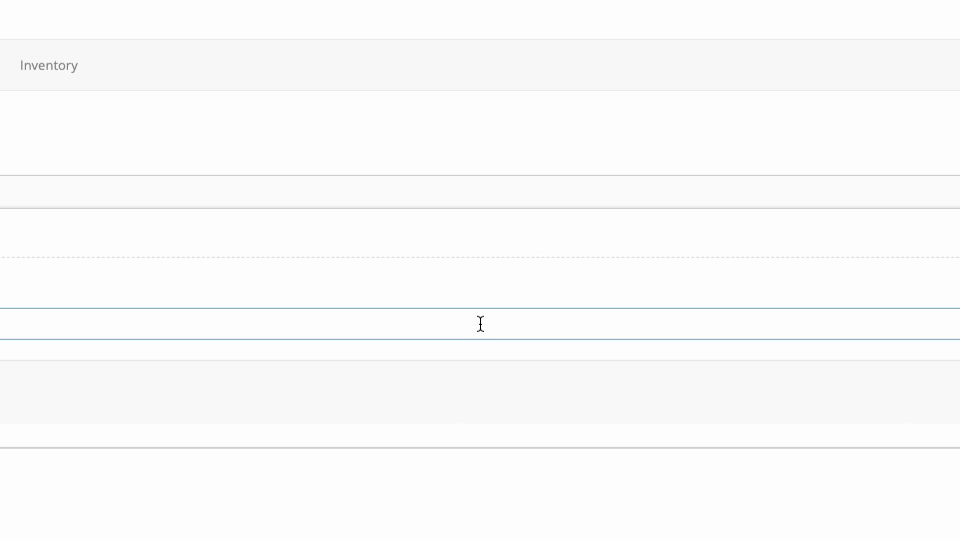
Step 7: Enter your new condition, such as “good,” “clean,” “dirty,” or “excellent.”
Step 8: Switch to the Manage tab to update or organize existing conditions.
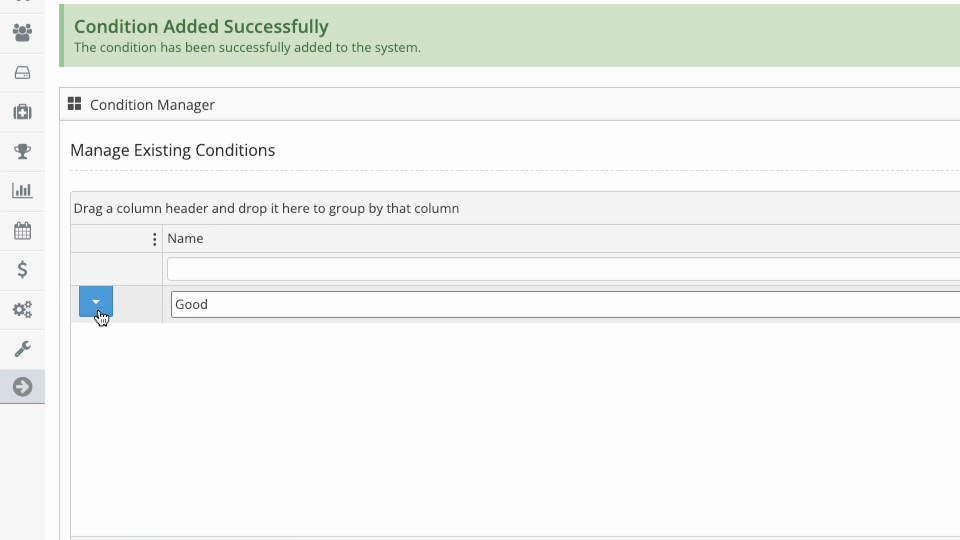
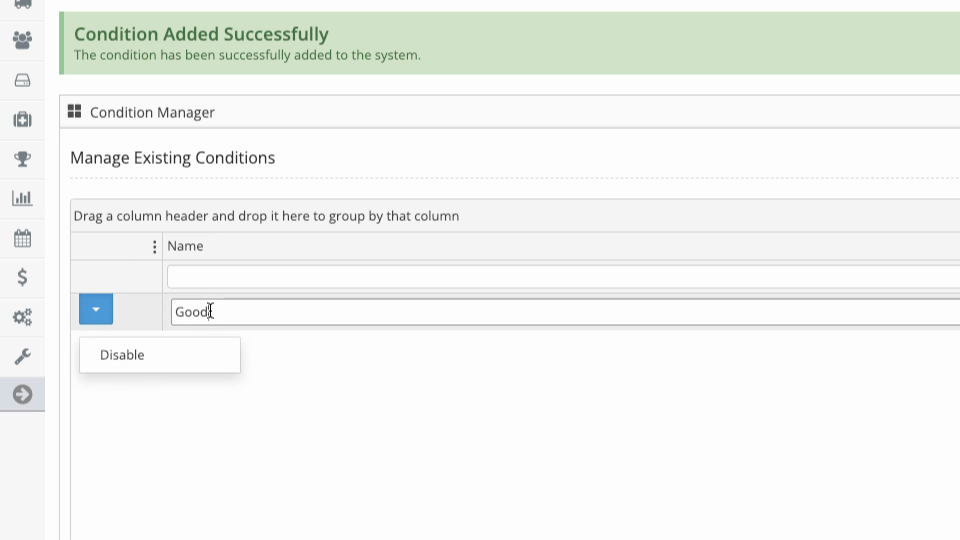
Step 9: Disable a condition or change its name directly from this screen.
Was this article helpful?
That’s Great!
Thank you for your feedback
Sorry! We couldn't be helpful
Thank you for your feedback
Feedback sent
We appreciate your effort and will try to fix the article