Inventory - Receiving Stock
Step 1: Log in to your VAIRKKO account. Click Admin in the upper right corner to access the administrative area.
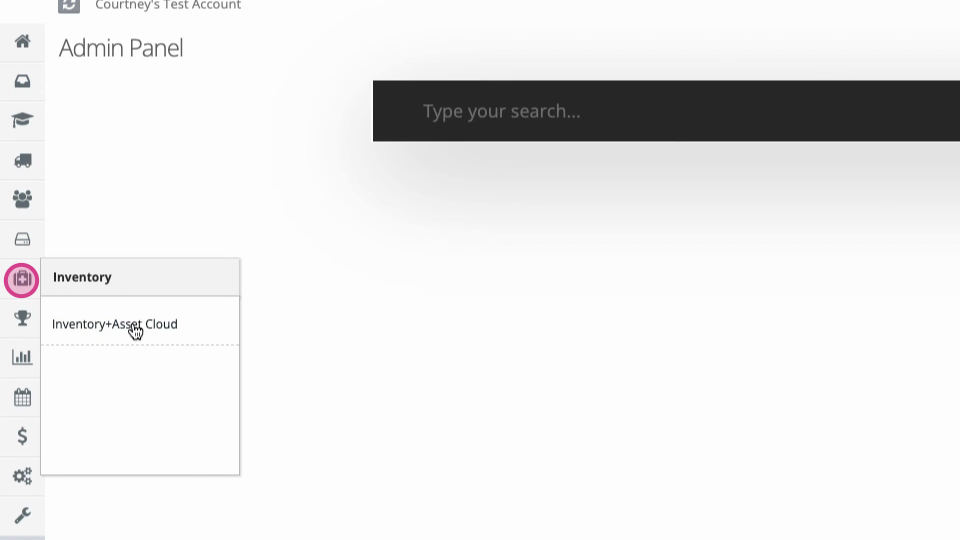
Step 2: Go to the Inventory and Asset Cloud Cloud.
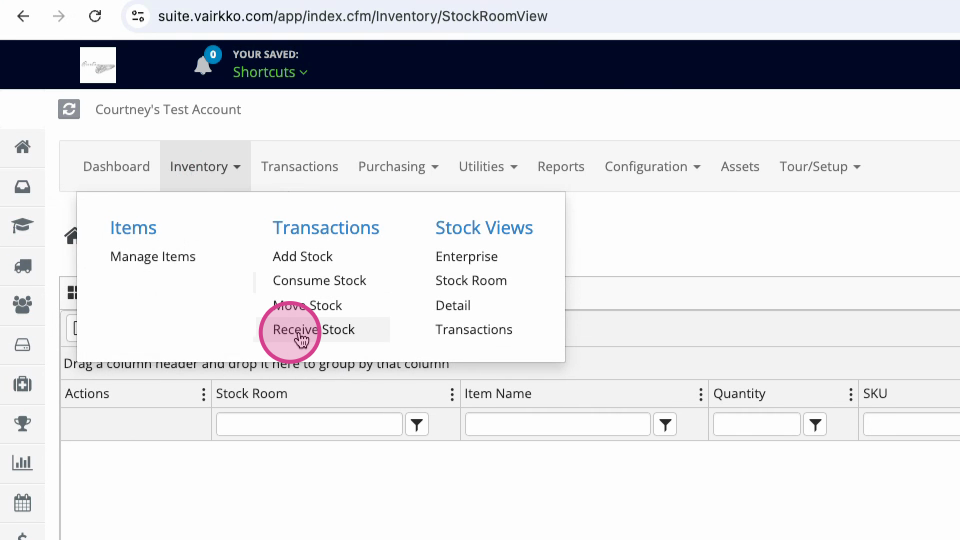
Step 3: At the top of the screen, under Inventory, click Receive Stock.
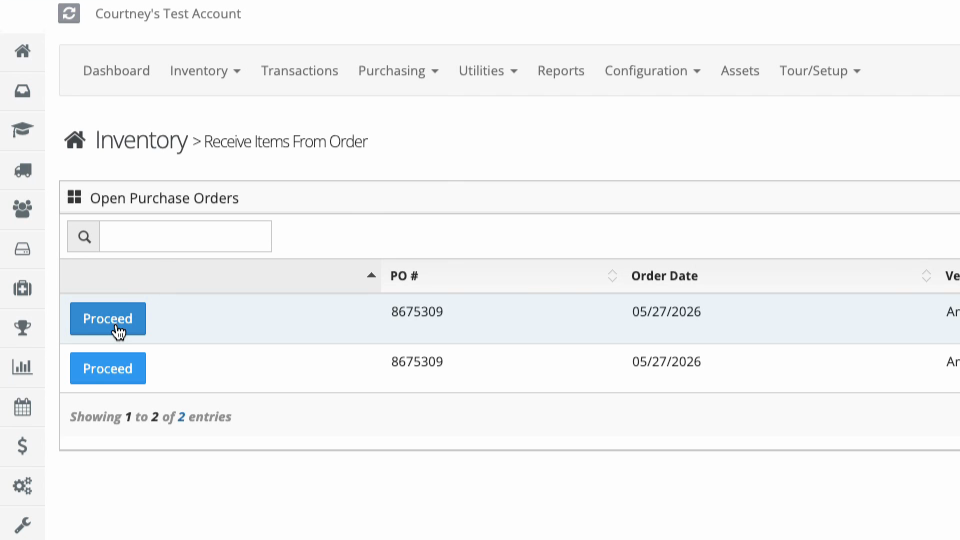
Step 4: Find the order you want to receive and select the Proceed button next to it.
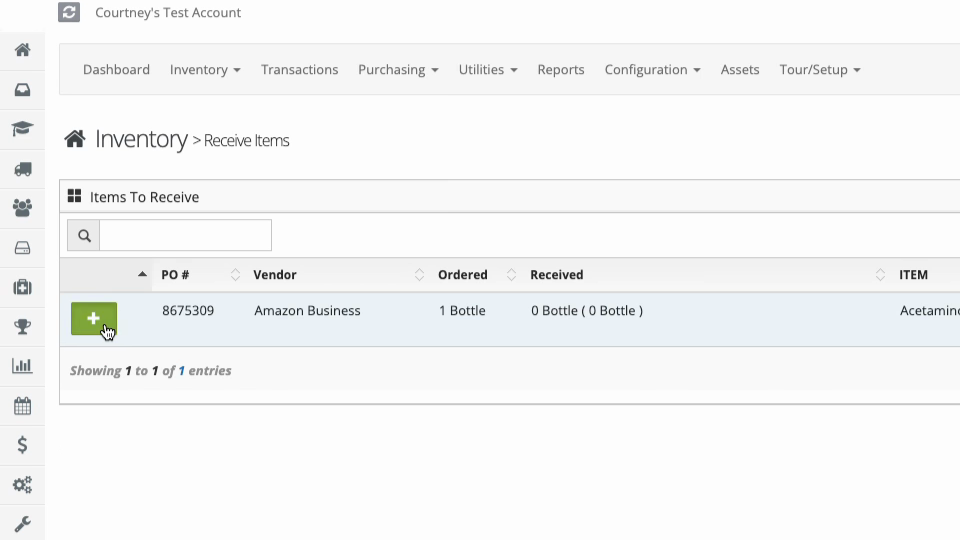
Step 5: Click the plus (+) sign next to the item you want to add.
Step 6: Follow the on-screen prompts to enter the details and add your stock.