To manage and interact with submitted iForms follow the steps below.
Step 1: Log into the VAIRKKO Platform
Step 2: Access the Administrative area by clicking 'ADMIN' in the upper right-hand corner.
Step 3: Access the 'iForms Cloud' from the Administrative Toolbar
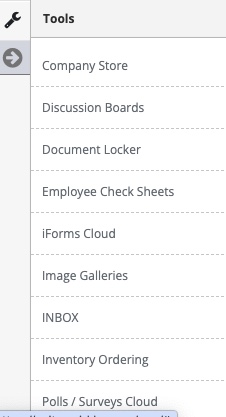
Step 4: Select the 'Manage iForms' tab
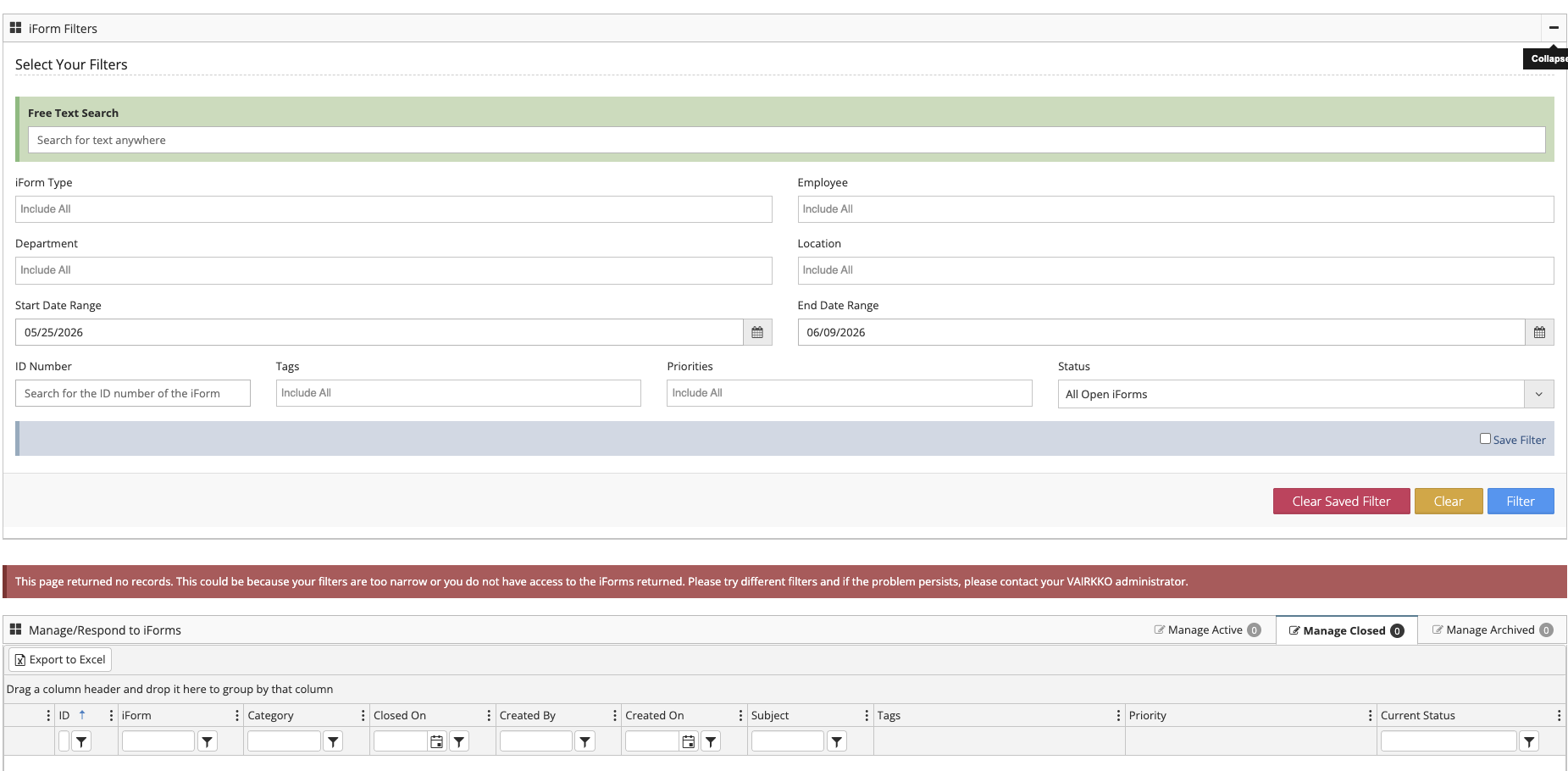
Displayed iForms
The iForms that are displayed on this screen are the current open iForms you are assigned to. If you have a saved filter the filtered results will be shown on this page.
Filtering iForms
- iForm Type - Search for a specific iForm template
- Employee - Search for an iForm submitted by a specific employee
- Department - Search for iForms submitted by a specific Department
- Location - Search for iForms submitted by a specific Location
- Start Date Range - The starting date of your search
- End Date Range - The ending date of your search
- ID Number - Search for a specific iForm by its ID number
- Status
- All Open iForms - Displays ALL open iForms whether you are assigned to it or not. **This is dependent on the iForm exception settings**
- All Closed iForms - Displays ALL closed iForms whether you are assigned to them or not. **This is dependent on the iForm exception settings**
- My Open iForms - Displays any open iForms you are assigned to
- My Closed iForms - Displays any closed iForms you are assigned to
- All My Open and Closed iForms - Displays open and closed iForms assigned to you
I can't find my iForms
If you are not seeing specific iForms it could mean one of the following issues:
- You not assigned to the iForm you are looking for or do not have the ability to view all iForms
- You need to adjust your search parameters
Was this article helpful?
That’s Great!
Thank you for your feedback
Sorry! We couldn't be helpful
Thank you for your feedback
Feedback sent
We appreciate your effort and will try to fix the article