To work with an iForm that has been submitted follow the steps below.
Step 1: Access the iForms cloud
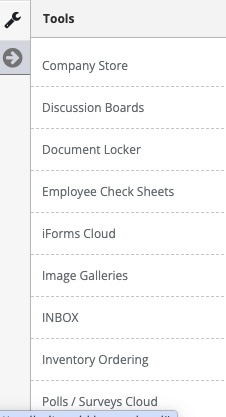
Step 2: Locate the iForm you want to interact with (Steps 1&2 can be found in the Accessing/Searching Submitted iForms article)
Step 3: Select 'View/Edit iForm' from the Actions Button
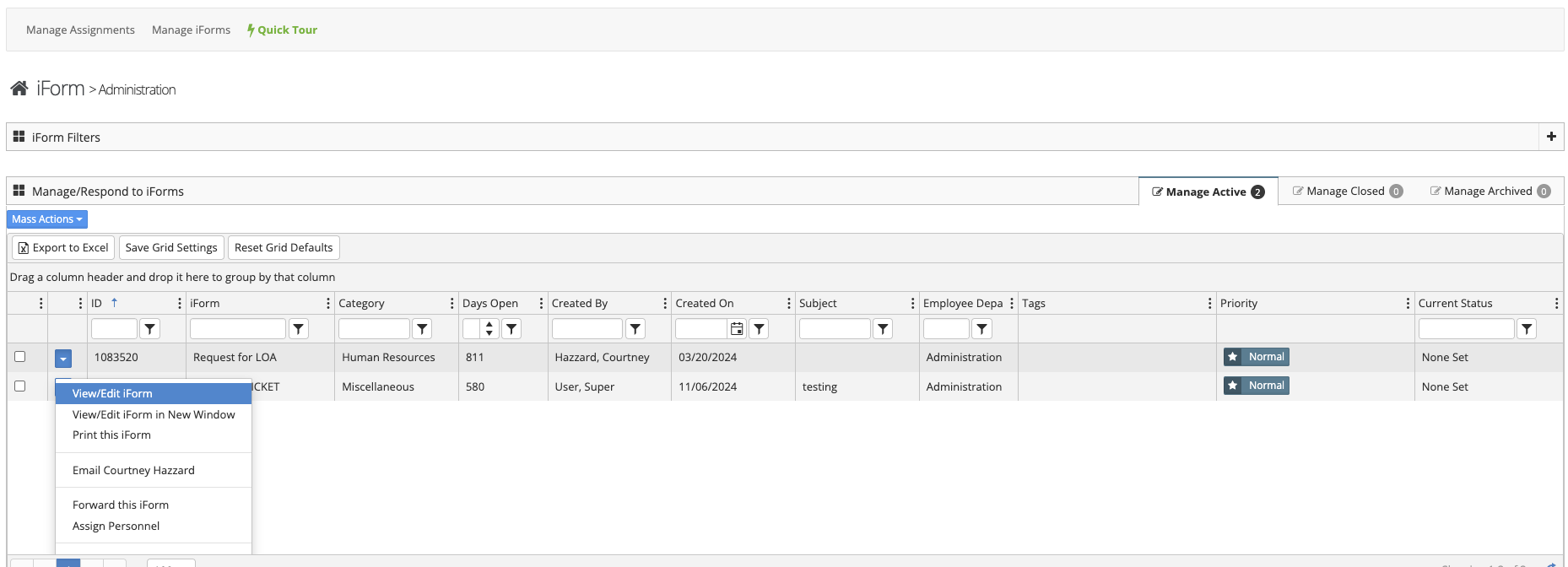
See Below for iForm Tab Details:
- Details Area - Displays the submission information
- The following settings are found in this area
- Tags - Creation/Management of Tags. Tags can be used to help search for this submitted iForm
- Priority - create/Manage iForm priorities. Priorities can be set to reflect the overall importance of an iForm
- Current Custom Status - Sets your preconfigured custom form status
- Subject - The subject entered by the employee submitting the form
- Current Category - The category assigned to the iForm
- Next Action Date - Sets a due date or date for any action to take place with an iForm. All assigned staff will receive an email reminder.
- Narrative - Displays the narrative entered by the employee submitting the iForm
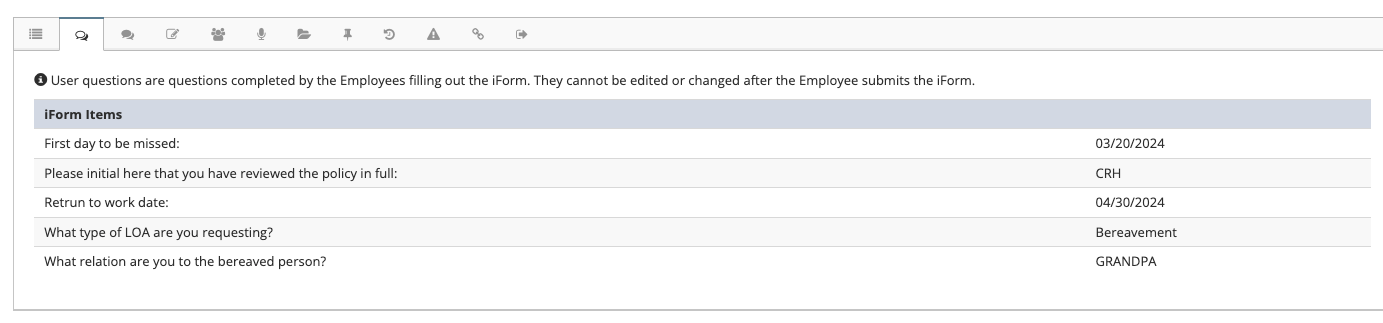
- User Questions Tab - Displays the questions and submitted answers of the employee submitting the iForm
- The following settings are found in this area
- Admin Questions Tab - Displays the questions only visible to Administrative Staff
- Note Tab - Gives you the ability to add a note to the submitted iForm. This note can be visible to Management or The Submitting Employee and Management. Also displays the notes added by employees after submitting the iForm
- Assigned Personnel Tab - Displays all personnel assigned to this iForm
- Employee Interview Tab - This allows you to ask a specific employee a question about the submitted iForm. You have the ability to show the employee the iForm information or not
- Documents Tab - Displays all documents attached to this iForm as well as uploaded documents
- Tasks - Assign a task to an employee through the task system and see all tasks linked to this iForm
- History Log - Shows the History and Notes associated with this iForm
- Notifications - Shows who was notified about this iForm
- Associated Items - This allows you to link the iForm to other items in the platform. Also displays the currently linked items.
- Final Disposition - This allows you to enter and see the final disposition or outcome of the iForm. This is configured within the iForm template.
Additional Information
- Print this iForm - Prints the iForm
- Email Employee - Sends an email to the employee
- Forward this iForm - Forwards the iForm information
- Assign Personnel - Assign additional personnel to this iForm