To create an eSignature document follow the steps below.
Step 1: Log into the VAIRKKO Platform
Step 2: Access the Administrative area by clicking 'ADMIN' in the upper right-hand corner.
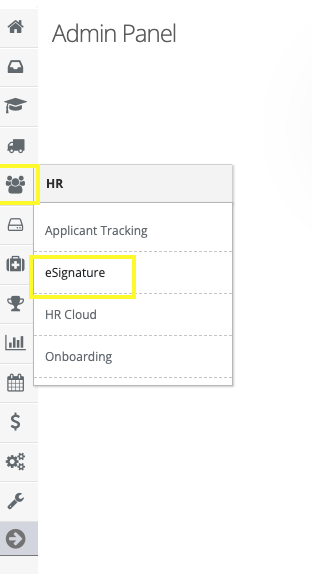
Step 3: Access the 'eSignature' from the Administrative Toolbar
Step 4: Select either the 'Get Signatures' tile or 'Get signatures' from the in-app menu
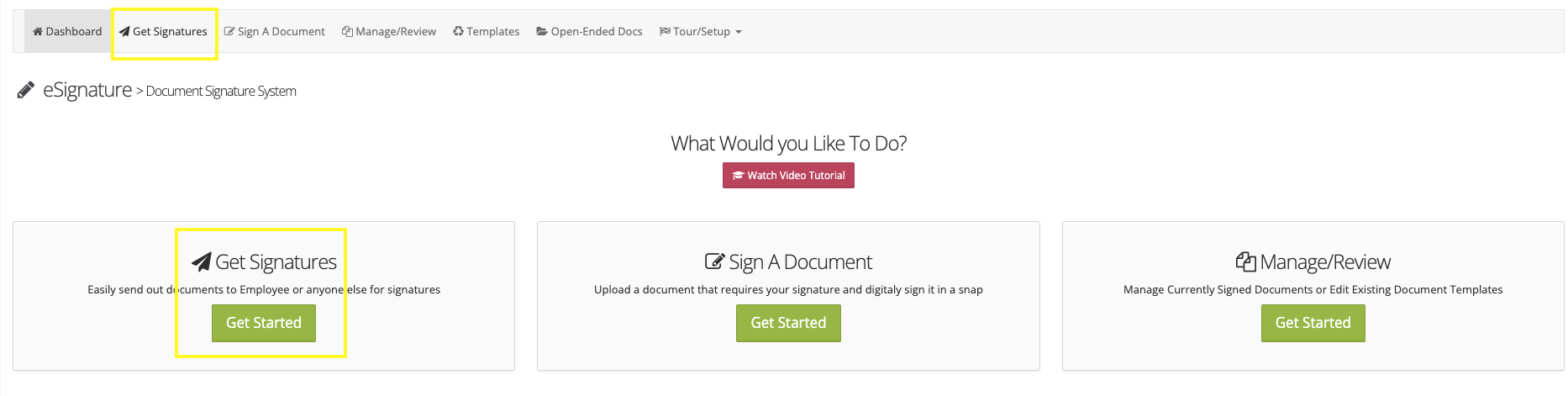
Step 5: Follow the on-screen prompts to configure your document then press continue
Step 6: Determine the type of Form Field you wish to enter
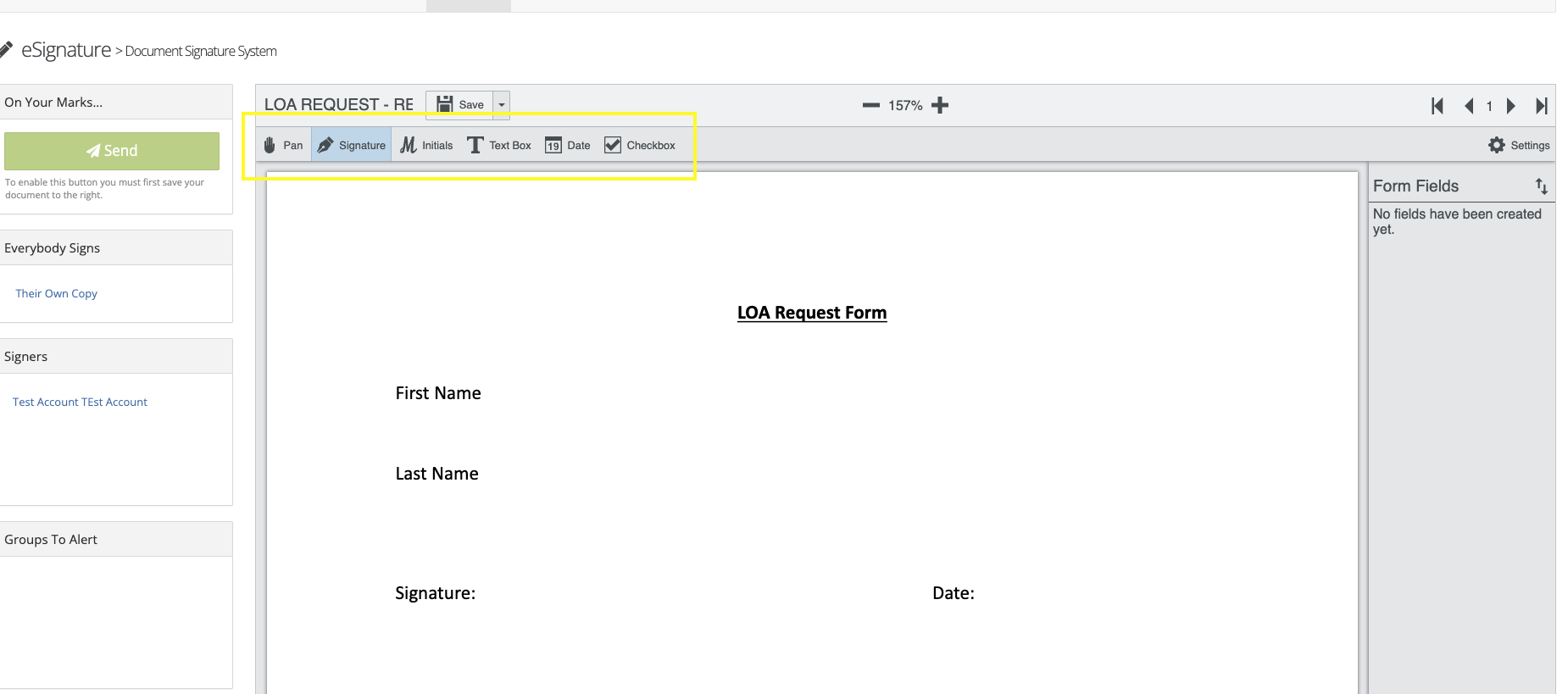
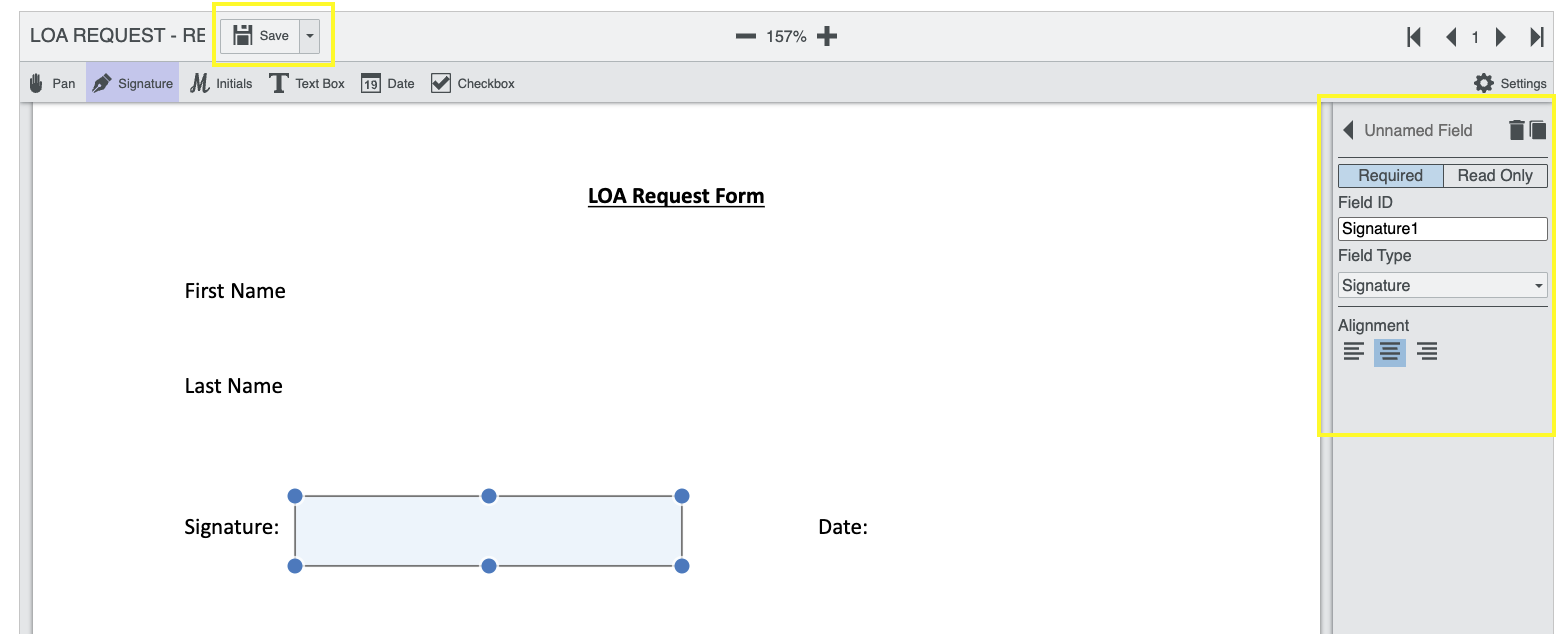
Step 7: Drag your desired form field over the area and configure it
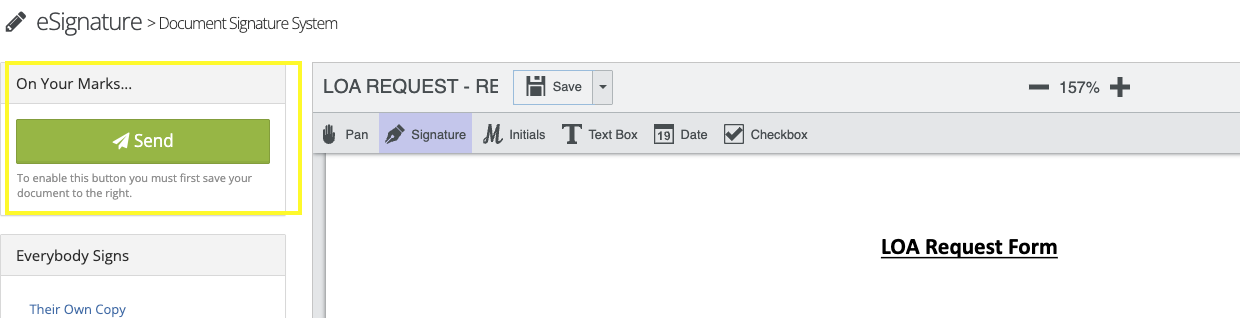
Step 8: When you have completed filling out the fields select the save button to save the form
Step 9: After saving the document press the send button to send it to the employees listed
 Step 10: Your employee (s) will receive an email with a link to access and complete the document. Once they have completed the document you will receive a copy and so will the signing employee.
What can I use this feature for?
- Sending tax forms to employees for signatures
- Sending employees job offers
- Sending employees any document you need to be filled out with or without signatures
Was this article helpful?
That’s Great!
Thank you for your feedback
Sorry! We couldn't be helpful
Thank you for your feedback
Feedback sent
We appreciate your effort and will try to fix the article