To create an eSignature document follow the steps below.
Step 1: Log into the VAIRKKO Platform
Step 2: Access the Administrative area by clicking 'ADMIN' in the upper right-hand corner.
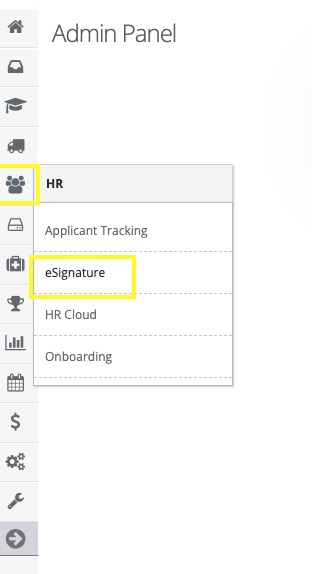
Step 3: Access the 'eSignature' from the Administrative Toolbar
Step 4: Select either the 'Sign A Document' tile or 'Sign A Document' from the in-app menu
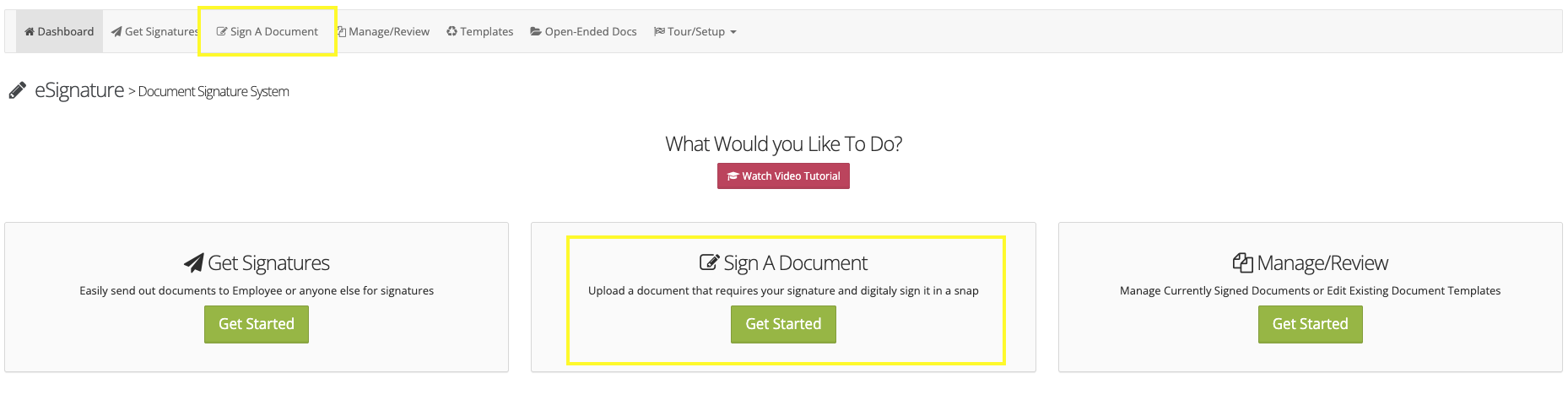
Step 5: Follow the on-screen prompts to upload your document
Step 6: From the E-sign area you can Manage Saved Signatures, Create a freehand or typed signature, place the signature, or place a date
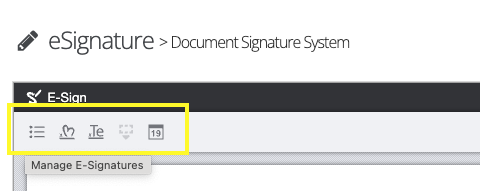
Step 7: To sign the document select the 'Place Signature' option and select the area on the document to place it
Additional Information
To place a signature on the form you have to have at least one saved signature type.
Was this article helpful?
That’s Great!
Thank you for your feedback
Sorry! We couldn't be helpful
Thank you for your feedback
Feedback sent
We appreciate your effort and will try to fix the article