Mobile App - Adding a Certification
Step 1: Tap the three lines in the top left corner to open the main menu.
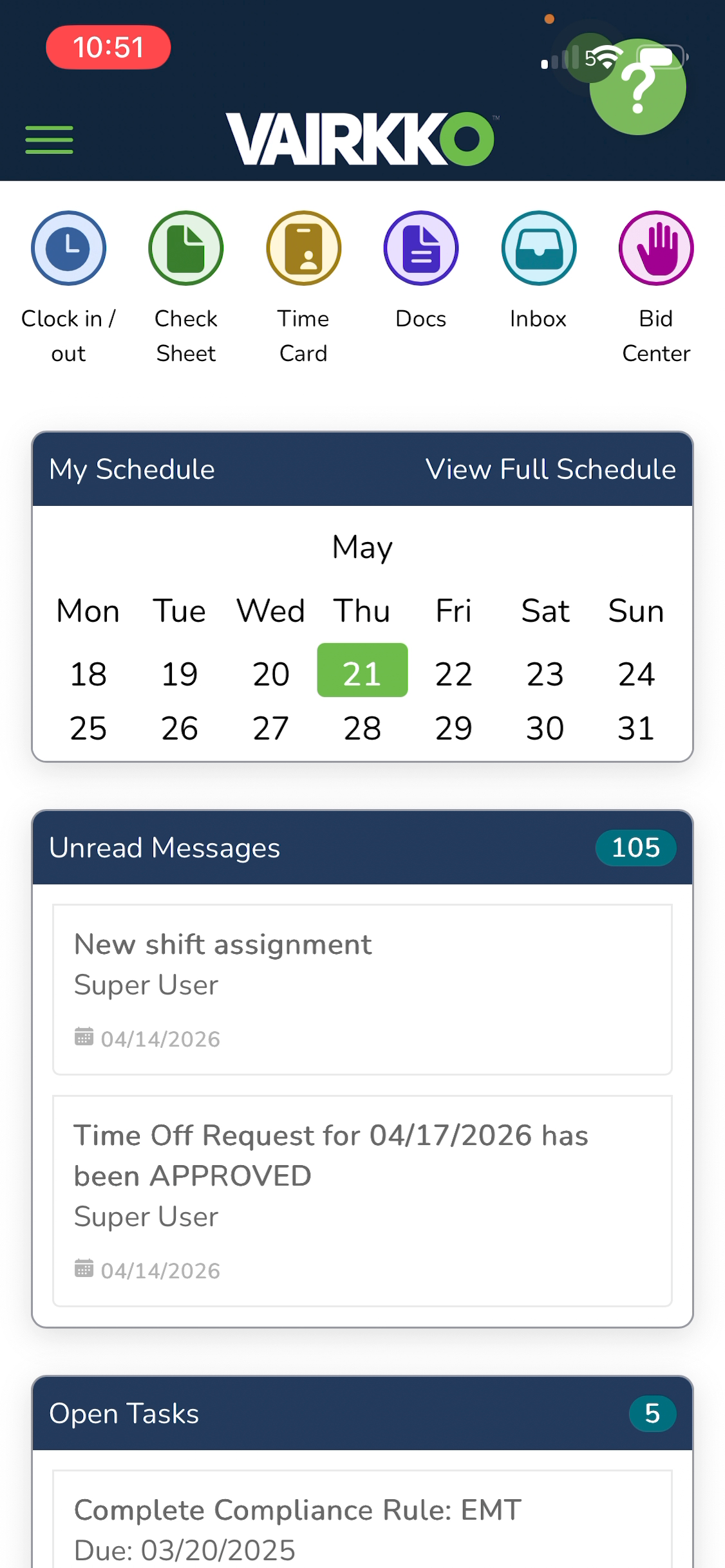
Step 2: Scroll down and select Certifications.
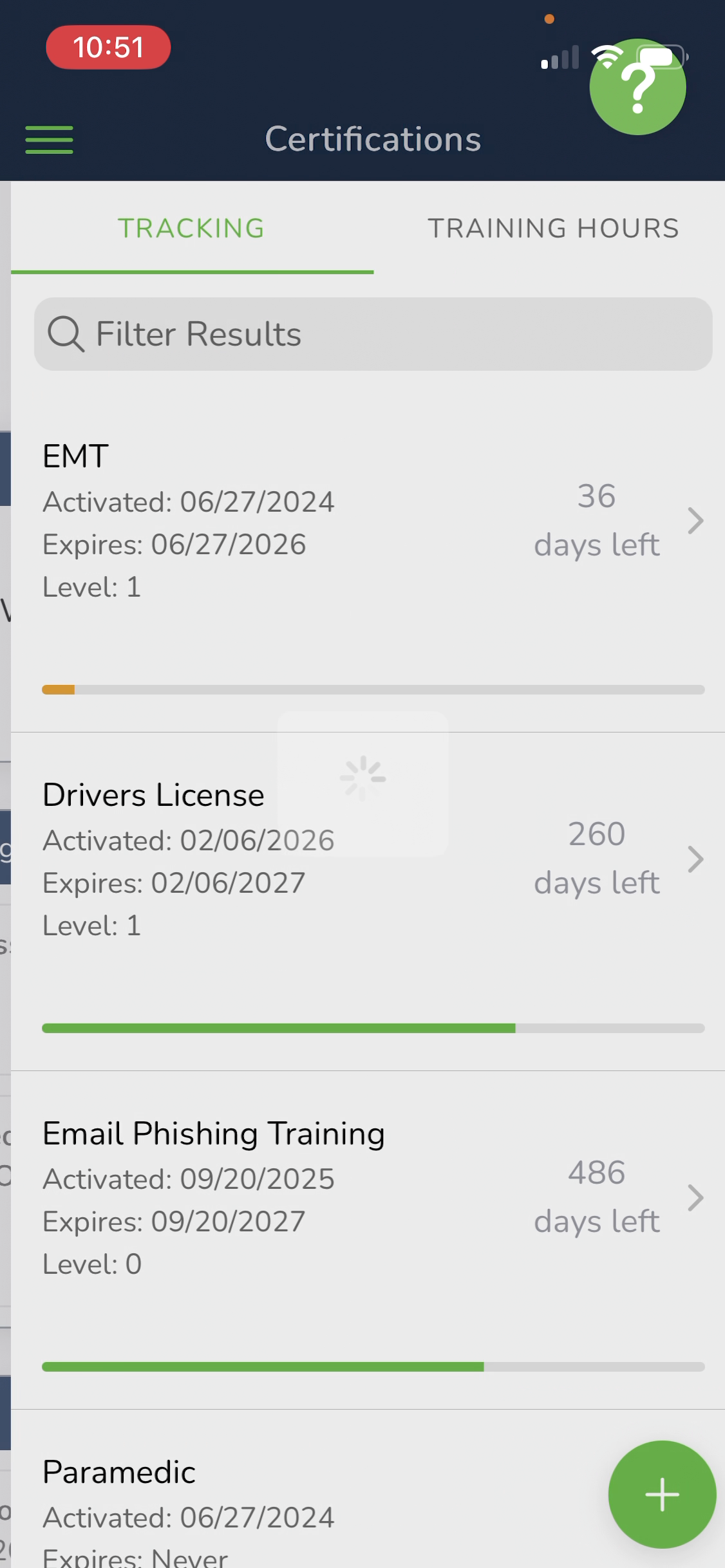
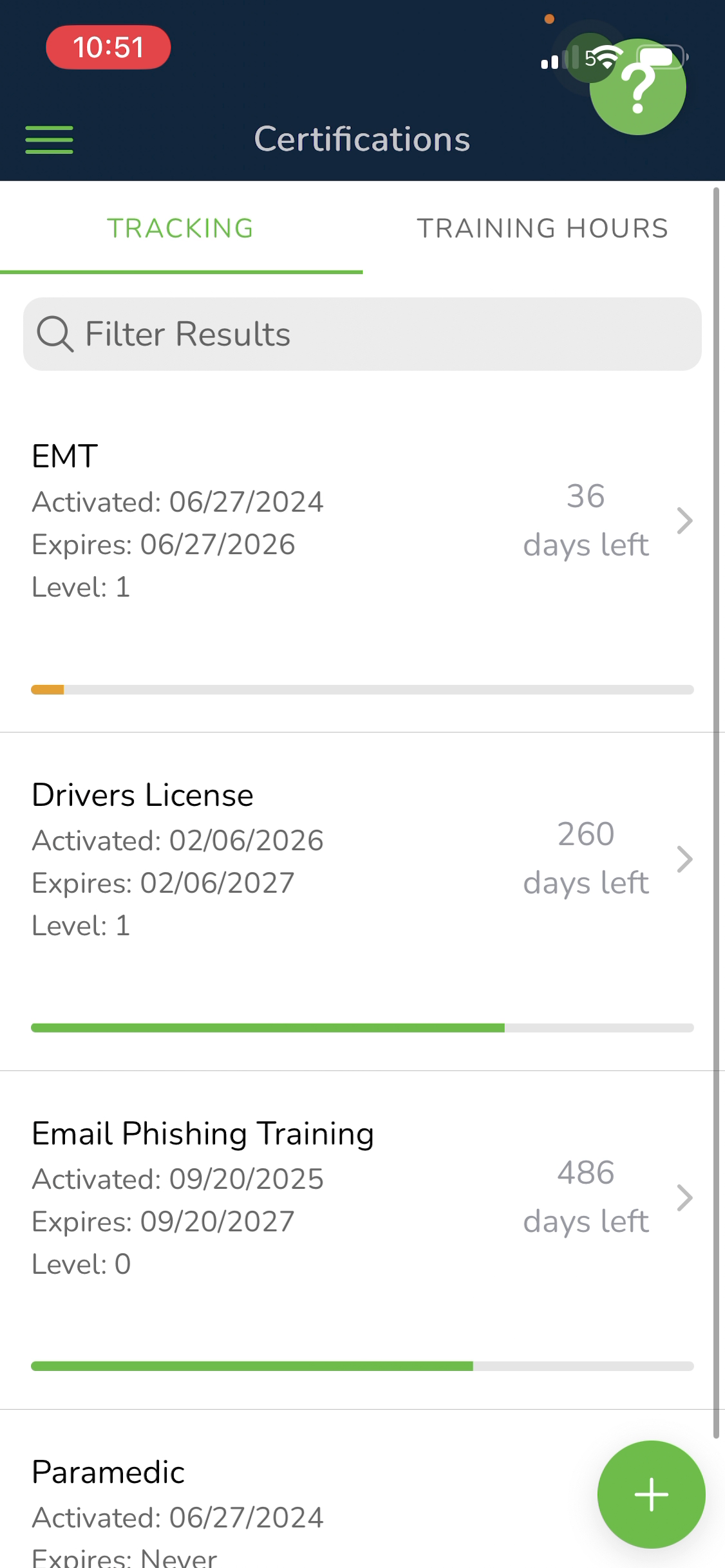
Step 3: Review your active certifications on the tracking page.
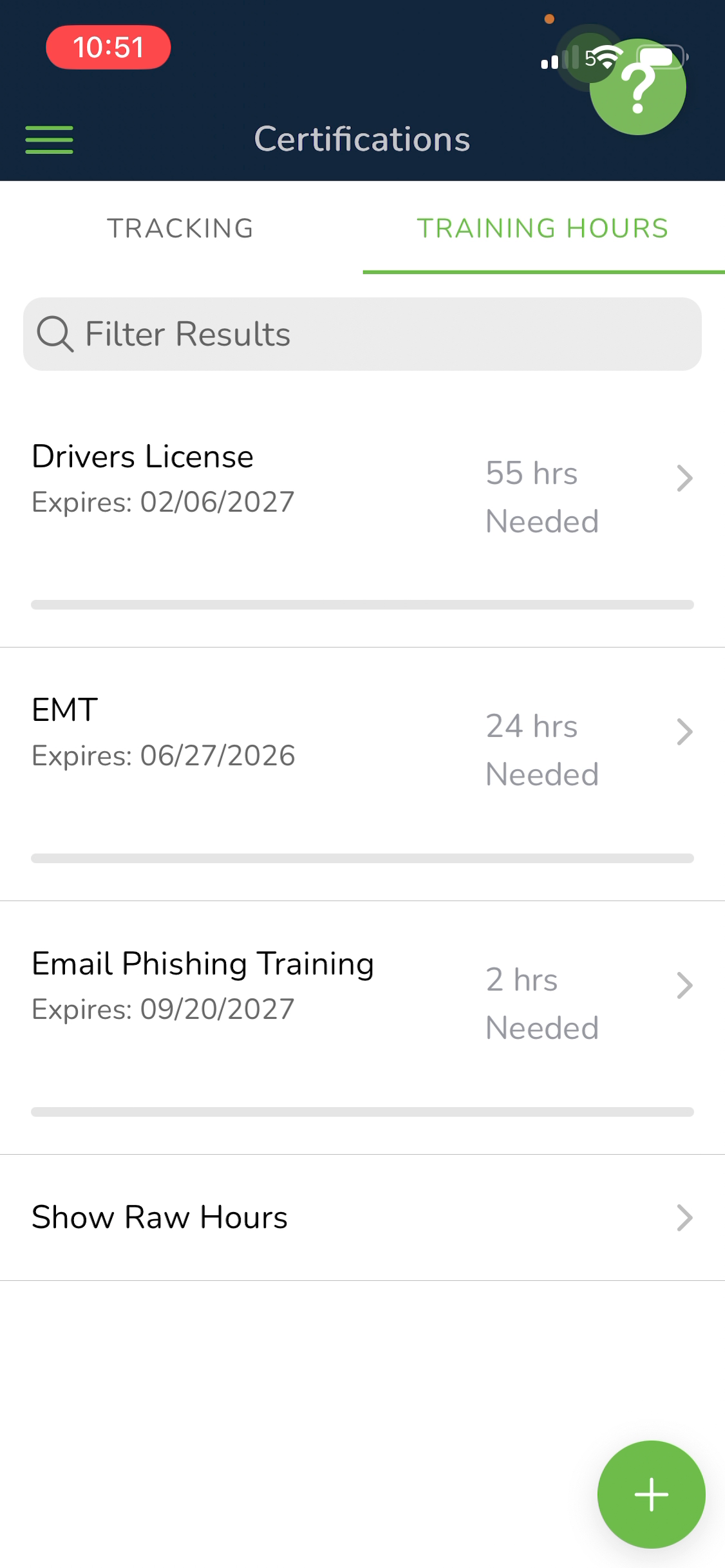
Step 4: If your organization tracks training hours, swipe or tap to the right to view your training hours.
Step 5: To add a new certification, tap the plus button in the bottom right.
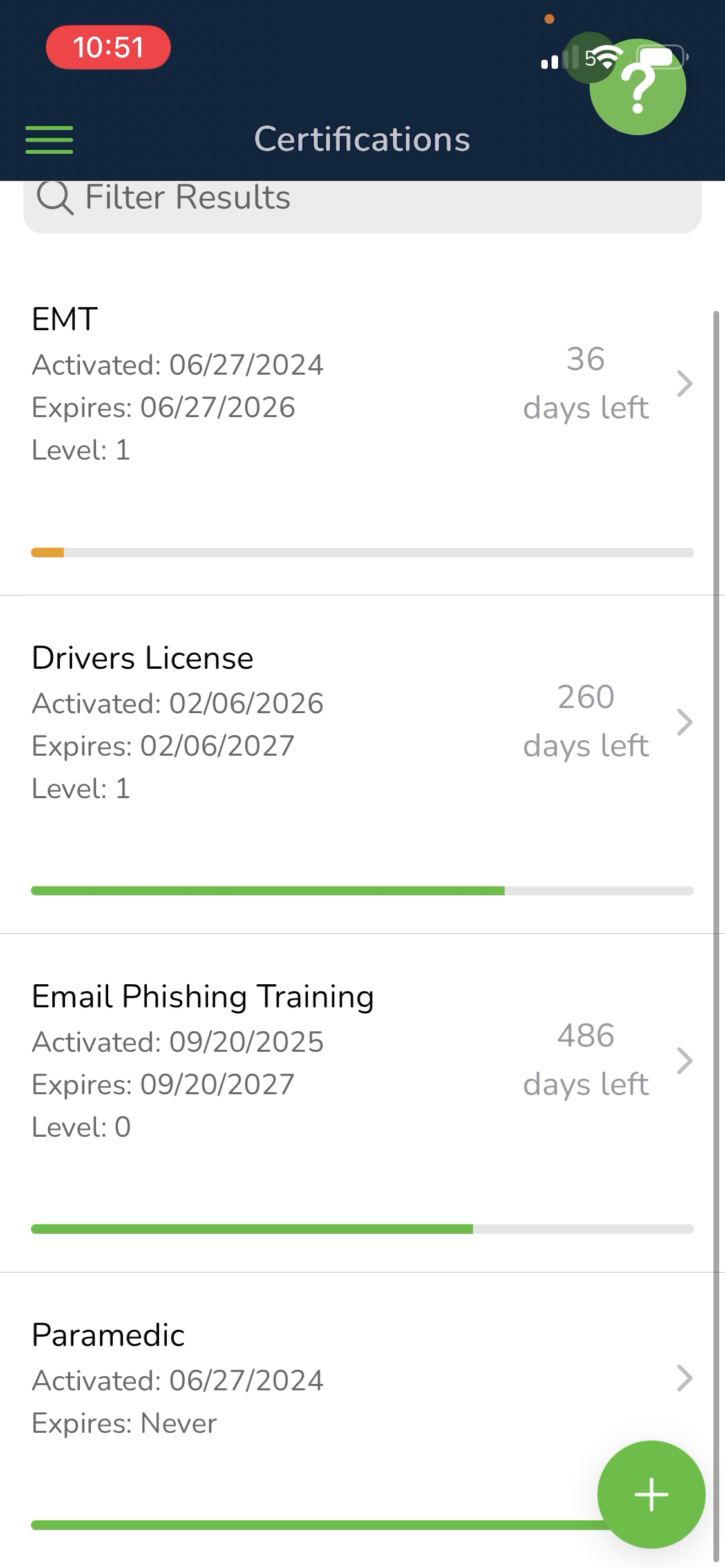
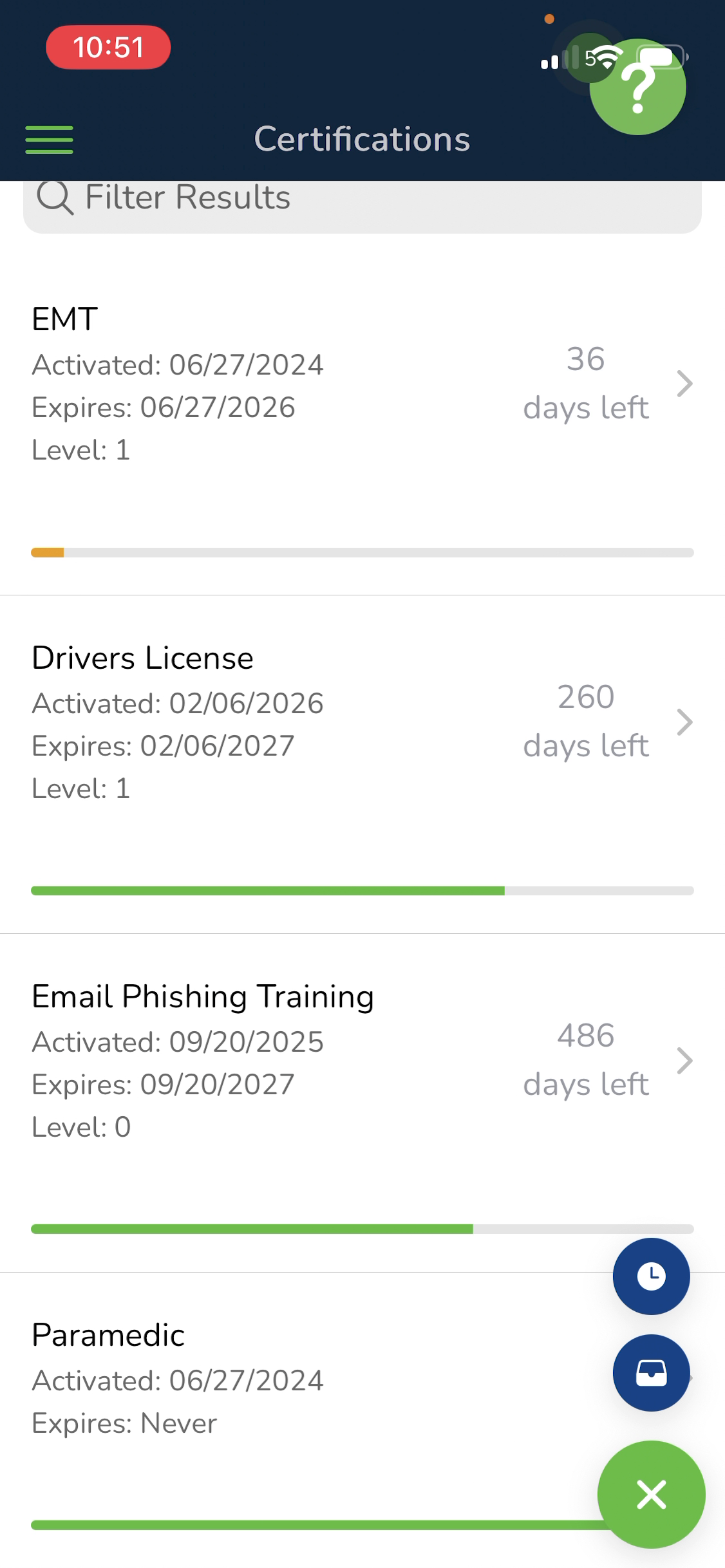
Step 6: Tap the second icon from the top—it looks like a filing cabinet drawer.
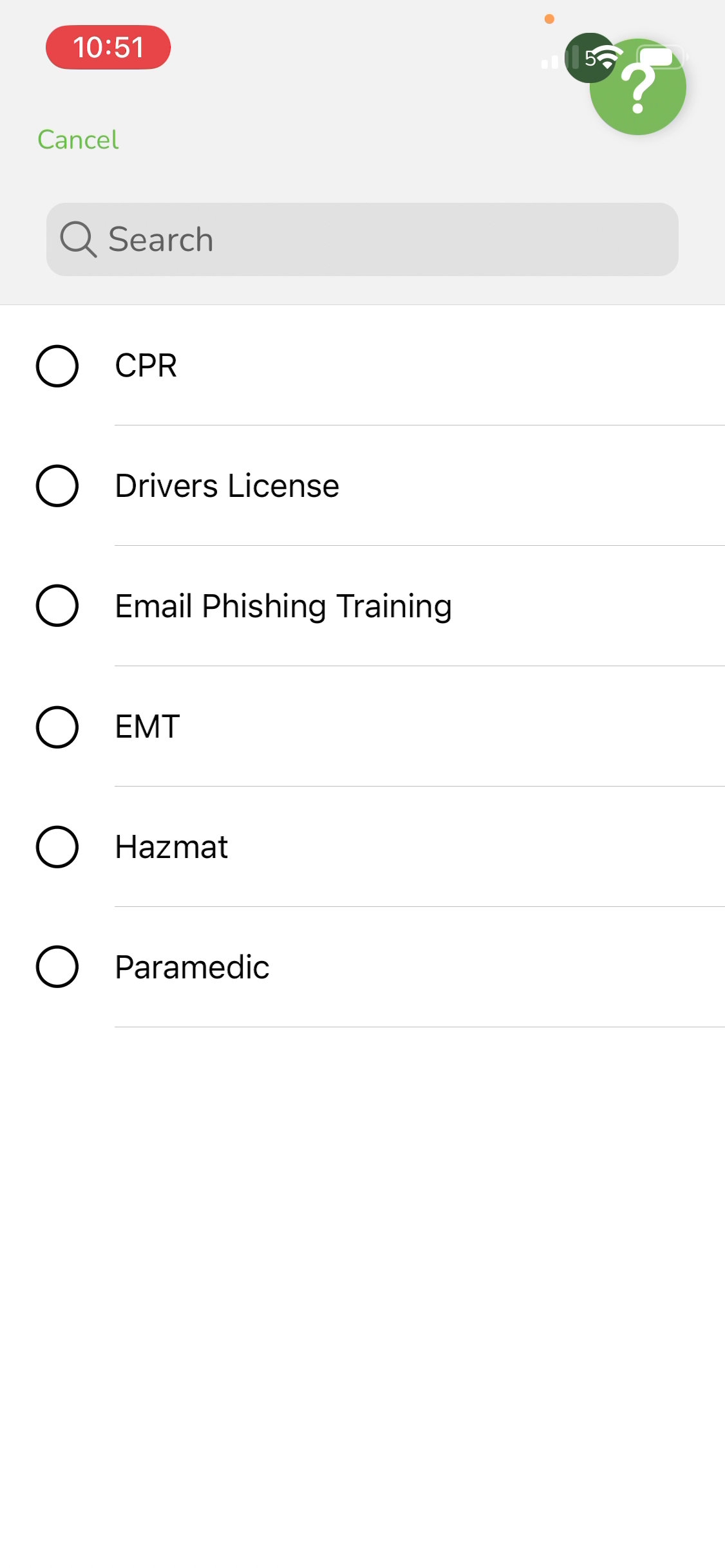
Step 7: Select the certification you want to add.
Step 8: Enter any endorsement numbers or relevant details.
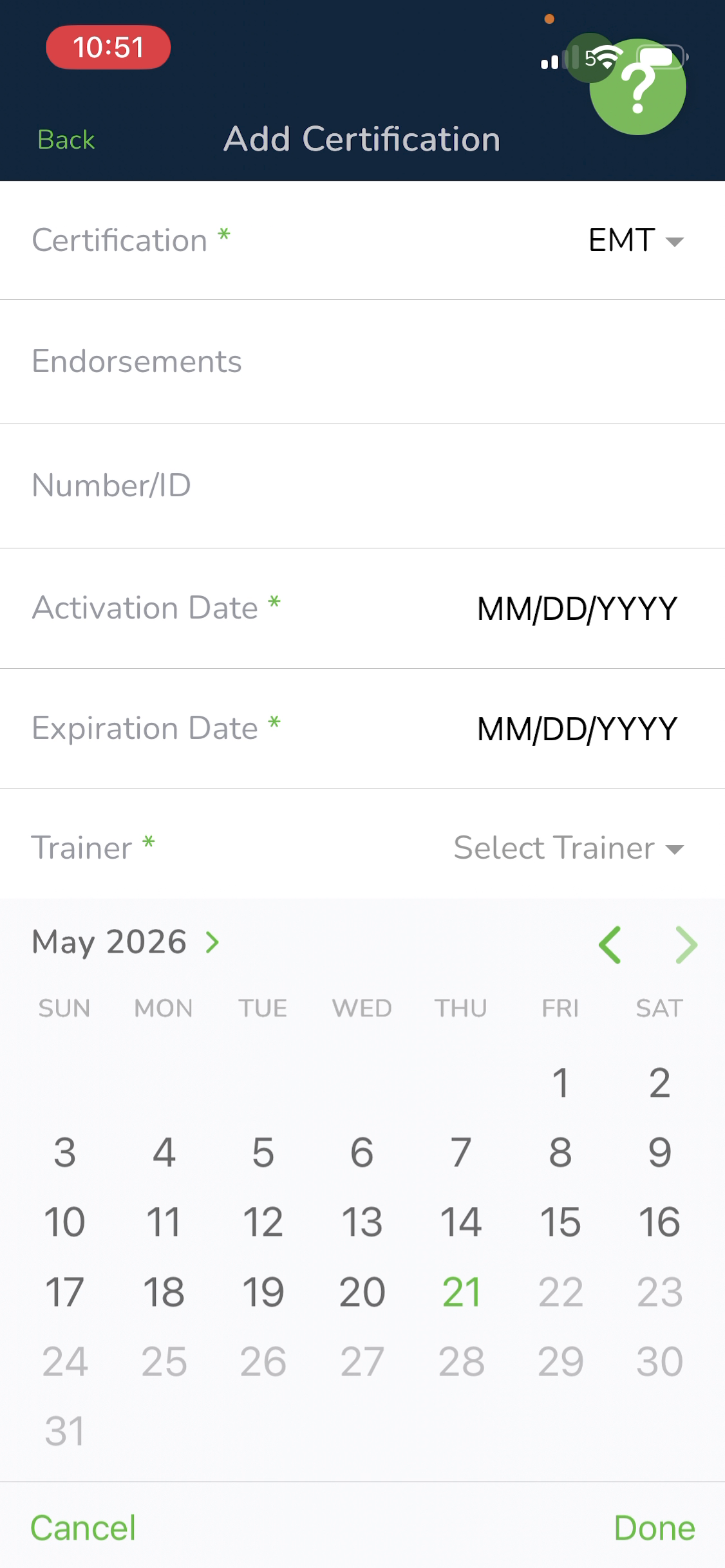
Step 9: Add the activation date and choose the trainer if needed.
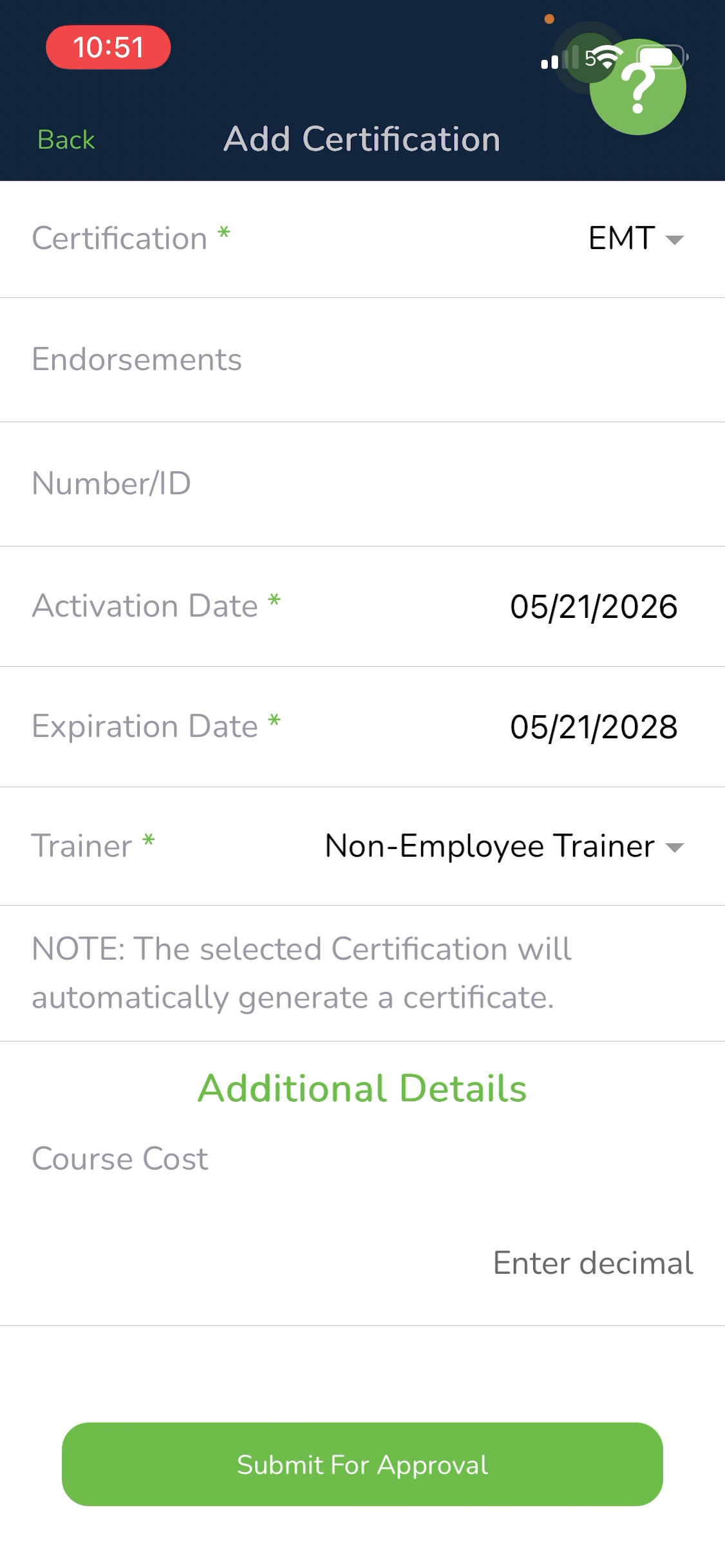
Step 10: Fill out all required fields, which are marked with a green asterisk.
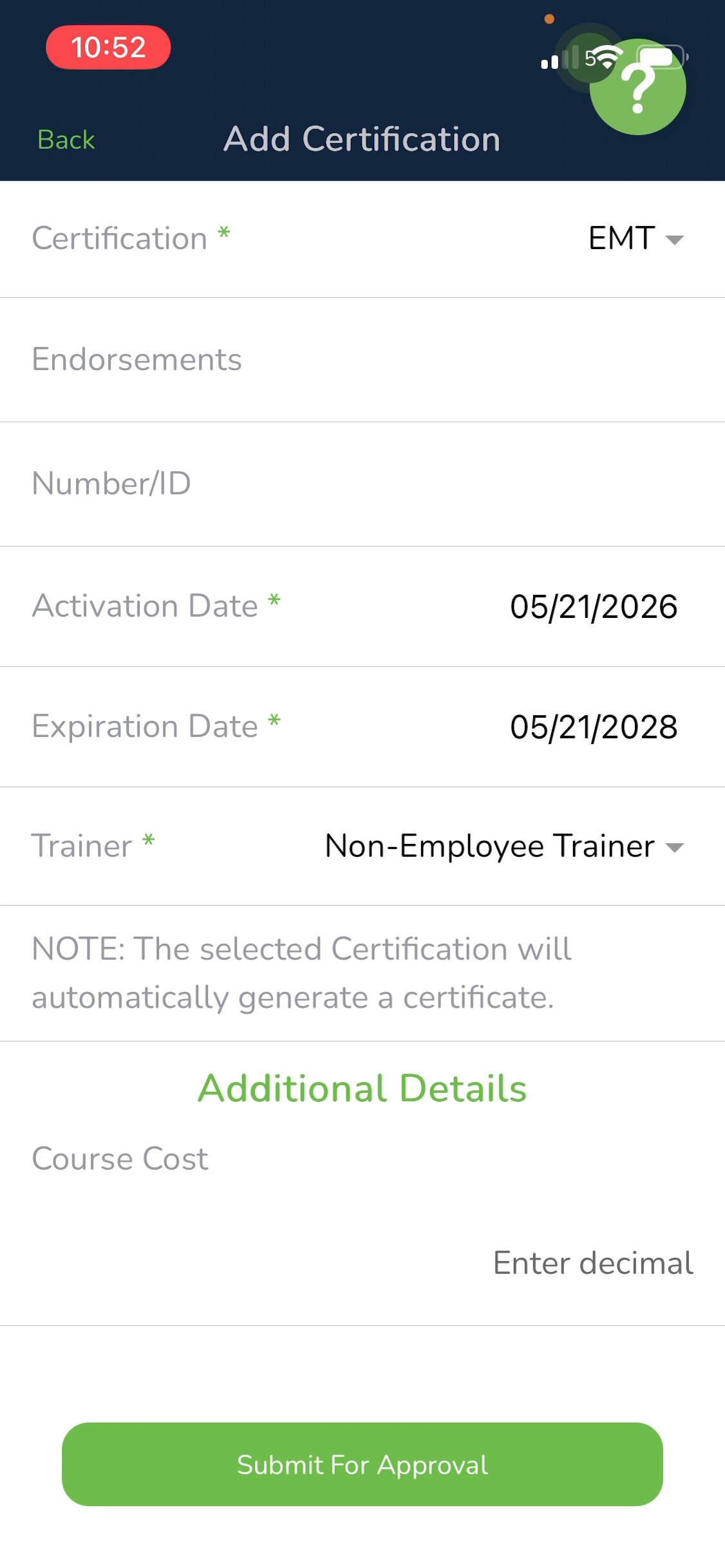
Step 11: Tap Submit for Approval at the bottom when finished.
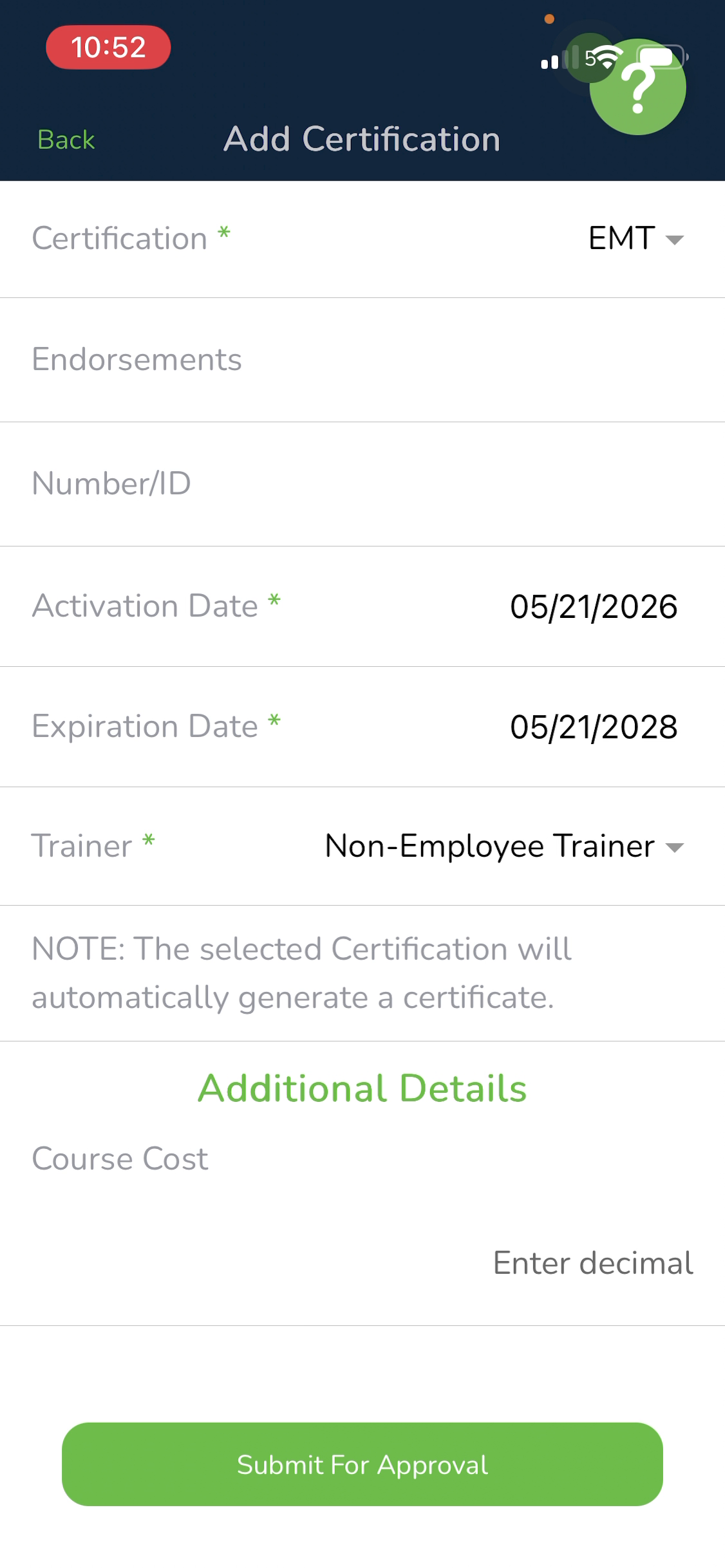
Step 12: Your certification now awaits supervisor approval.
Was this article helpful?
That’s Great!
Thank you for your feedback
Sorry! We couldn't be helpful
Thank you for your feedback
Feedback sent
We appreciate your effort and will try to fix the article