To import your Users Certifications into the VAIRKKO Platform follow the steps below.
Step 1: Log into the VAIRKKO Platform
Step 2: Access the Administrative area by clicking 'ADMIN' in the upper right-hand corner.
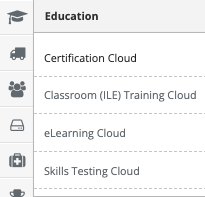
Step 3: Access the 'Certification Cloud' from the Administrative Toolbar
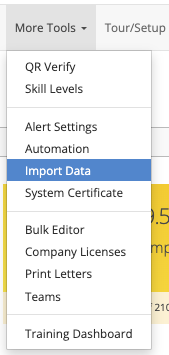
Step 4: Access the Import Data area from the in-app menu
Step 5: Select the 'Start an Import' button
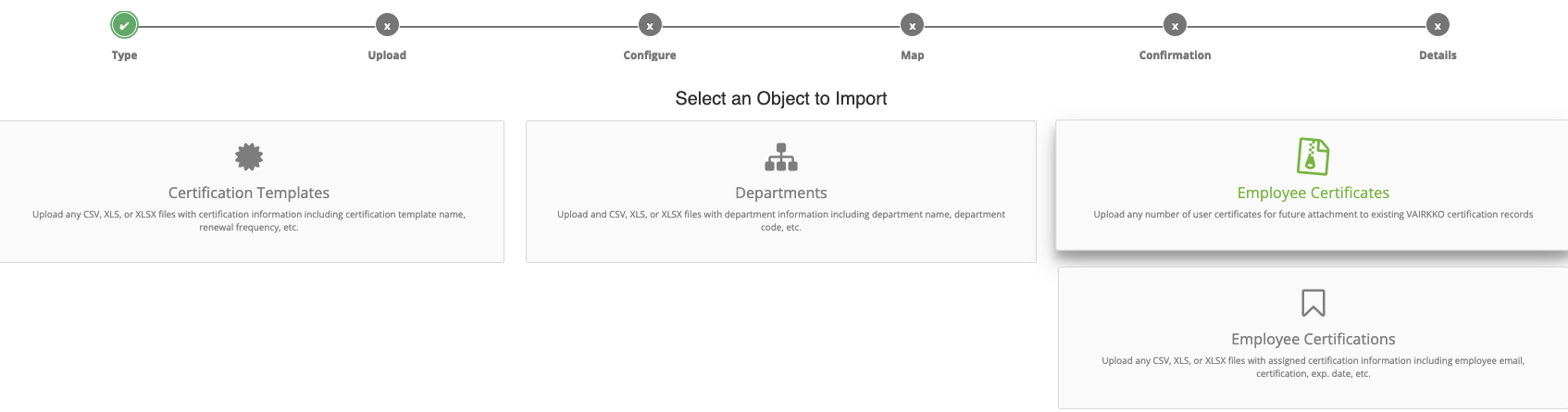
Step 6: Select 'Employee Certifications'
Step 7: Upload your document by placing it in the stripped area
Step 8: Determine which sheet to import and if the columns have headers
Step 9: Match your spreadsheet columns with the property within VAIRKKO
Step 10: Once your import is complete you will receive an email letting you know.
Additional Information
- The uploaded file has to contain either the employee number or email address, this is how the system links the data to the employee
- If data is found in the uploaded file and NOT found in VAIRKKO that data will be added
- If data is found in the uploaded file and is DIFFERENT in VAIRKKO the data in VAIRKKO will be updated. For example, a different expiration date for an assigned certification.
- If data is found in VAIRKKO but NOT in the uploaded file no data will be changed in VAIRKKO
- You can also use one of our supplied templates by clicking the 'Download Sample Spreadsheet Tile'