To see how to add additional Companies to your System follow the steps below.
Step 1: Log into the VAIRKKO Platform
Step 2: Access the Administrative area by clicking 'ADMIN' in the upper right-hand corner.
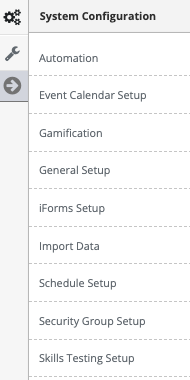
Step 3: Access the 'General Setup' from the Administrative Toolbar
Step 4: Select 'Companies' from the in-app menu.
Step 5: Select the 'New Company' tab to create a new company
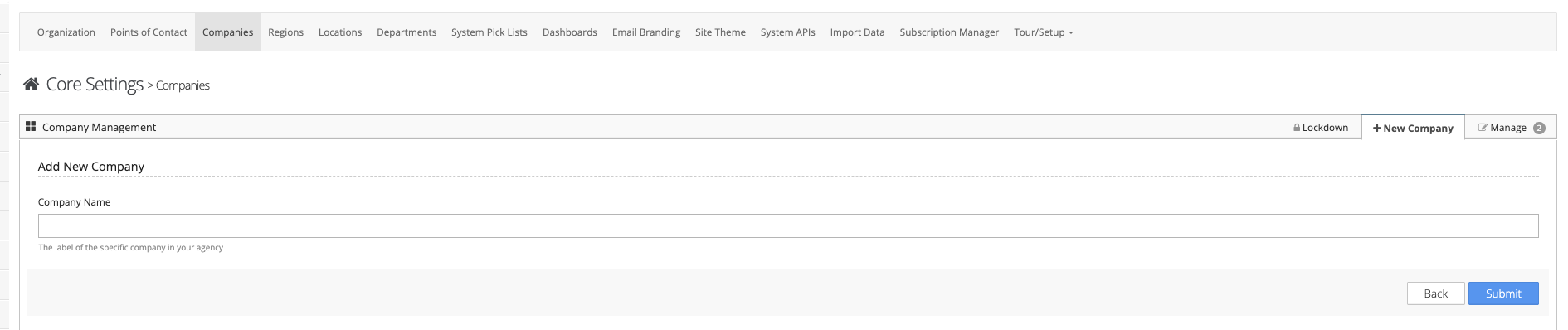
Step 6: Enter the name of your New Company and hit submit
Step 7: Once you have created your Company you will now need to link employees to it. To do this read the managing companies section below
Managing Created Companies
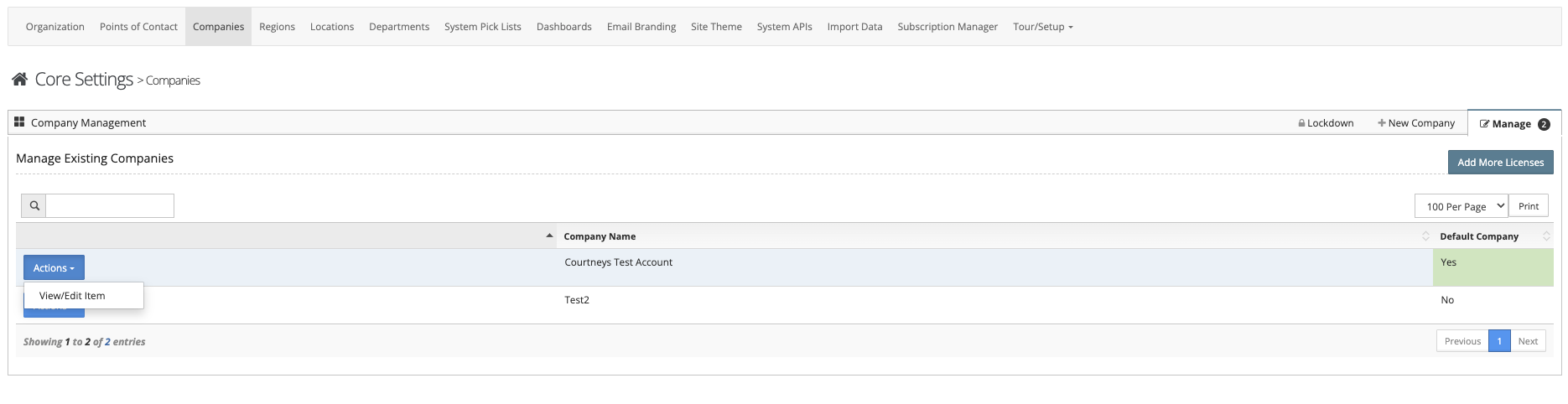
Step 1: From the Companies area select the 'Manage' tab
Step 2: From the 'Actions' button next to the Company you can view/edit which allows you to link employees to the company and change the Company name. You can also delete the company from the actions button.
Was this article helpful?
That’s Great!
Thank you for your feedback
Sorry! We couldn't be helpful
Thank you for your feedback
Feedback sent
We appreciate your effort and will try to fix the article