To configure your pattern templates follow the steps below.
Step 1: Log into the VAIRKKO Platform
Step 2: Access the Administrative area by clicking 'ADMIN' in the upper right-hand corner.
Step 3: Access the 'Schedule Setup' from the Administrative Toolbar
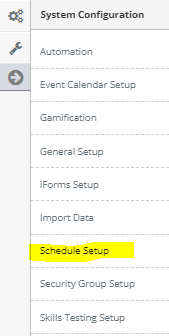
Step 4: 'Configuration' from the in-app menu

Step 5: Select 'Pattern Templates' located under the Patterns header in the in-app menu

Step 6: Select the 'Add Template' tab
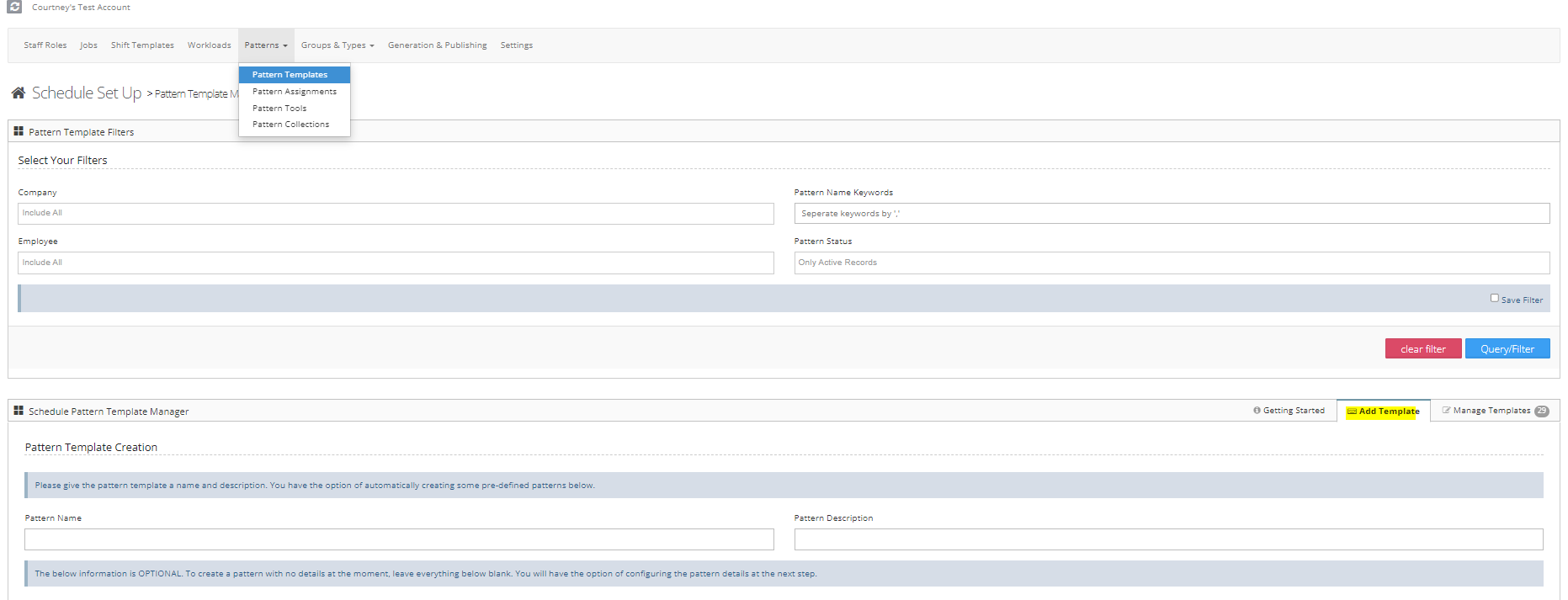
Step 7: Follow the on-screen prompts to enter your template. If you select the following option when creating your template continue reading to see how to proceed after clicking the Submit button
Creating a Custom Pattern
Step 1: Select the + sign to select the Shift Template to add to that day
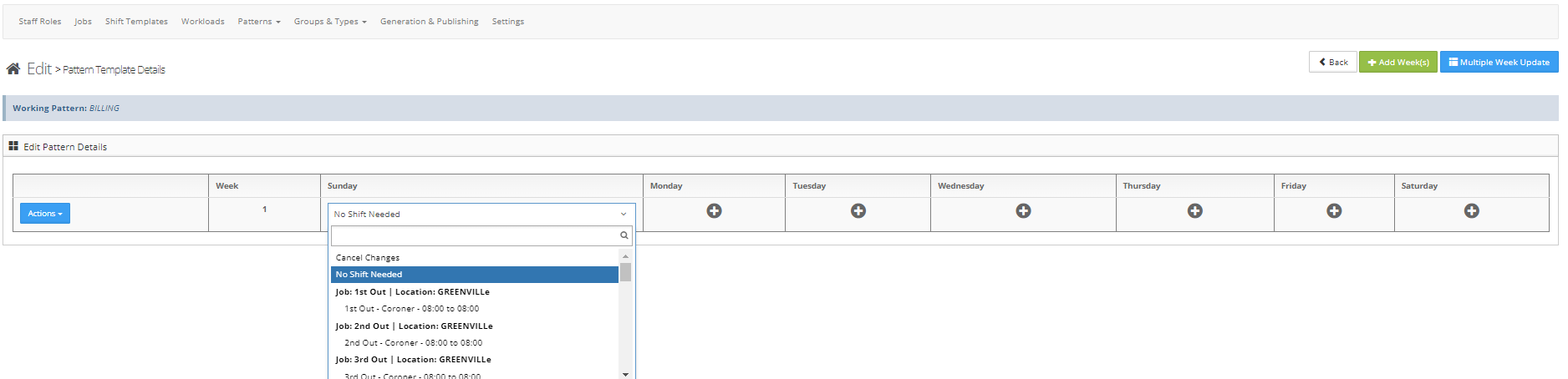
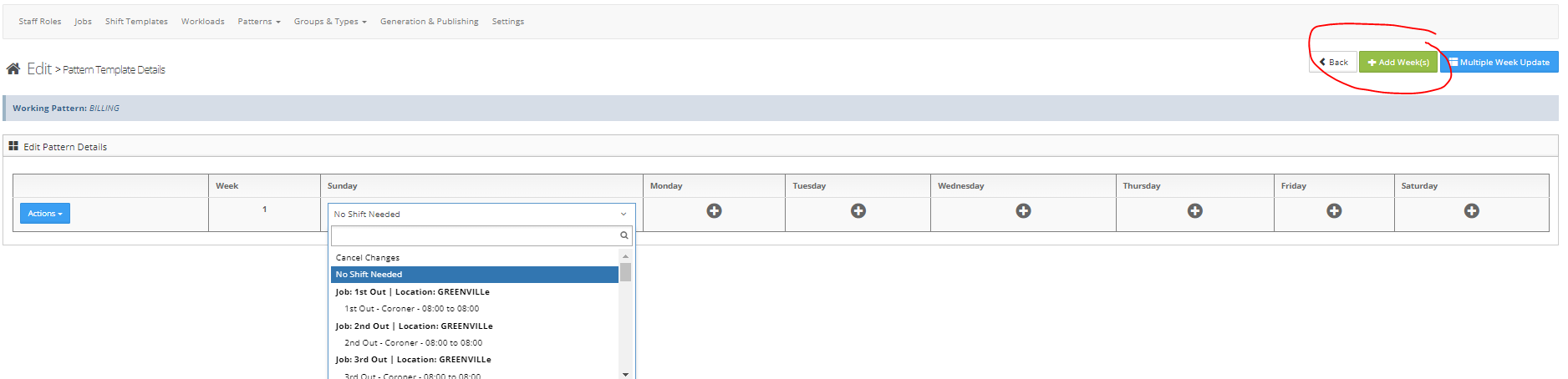
Step 2: To insert another week either select 'Insert Blank Week After' from the actions button or select the 'Add Week(s)' button
Repeating Pattern
An example of a repeating pattern is as follows:
- An employee works Sun, Wed, and Th of week 1
- Mon, Tues, Fri, and Saturday of week 2
- If week 3 is identical to week 1 you do not have to add week 3. The system will automatically start over on week 1
Additional Information
- You will need to create a pattern for each resource needed
- Patterns can be used for more than one employee
- Patterns can be started on any of the patterns weeks
- Copying a pattern makes it easy to create multiple patterns
Was this article helpful?
That’s Great!
Thank you for your feedback
Sorry! We couldn't be helpful
Thank you for your feedback
Feedback sent
We appreciate your effort and will try to fix the article