To add a new behavioral tracking incident and work with entered incidents follow the steps below.
Step 1: Log into the VAIRKKO Platform
Step 2: Access the Administrative area by clicking 'ADMIN' in the upper right-hand corner.
Step 3: Access the 'HR Cloud' from the Administrative Toolbar
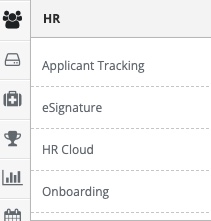
Step 4: Select the 'Behavioral Tracking' from the in-app menu

Step 5: Select 'Dashboard' from the in-app menu

Step 6: Select the 'Create Incident' button
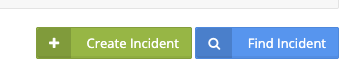
Step 7: Follow the on-screen prompts to begin adding the incident.
Managing an incident
Step 1: Click the 'Incident ID' to open the incident
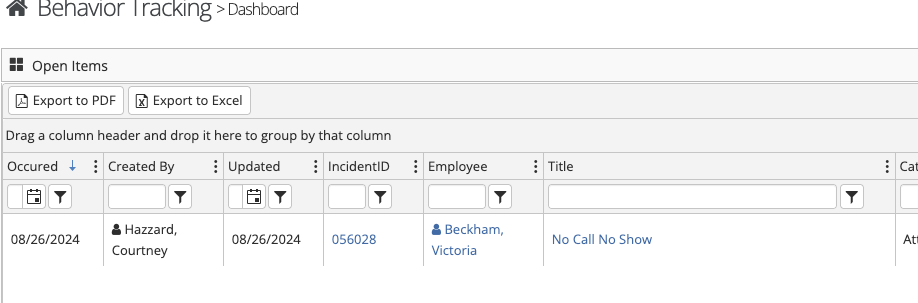
Step 2: From this area, you can make the incident visible to the employee, close it out, delete the incident, and print the incident.
Step 3: You can interact with the following tabs
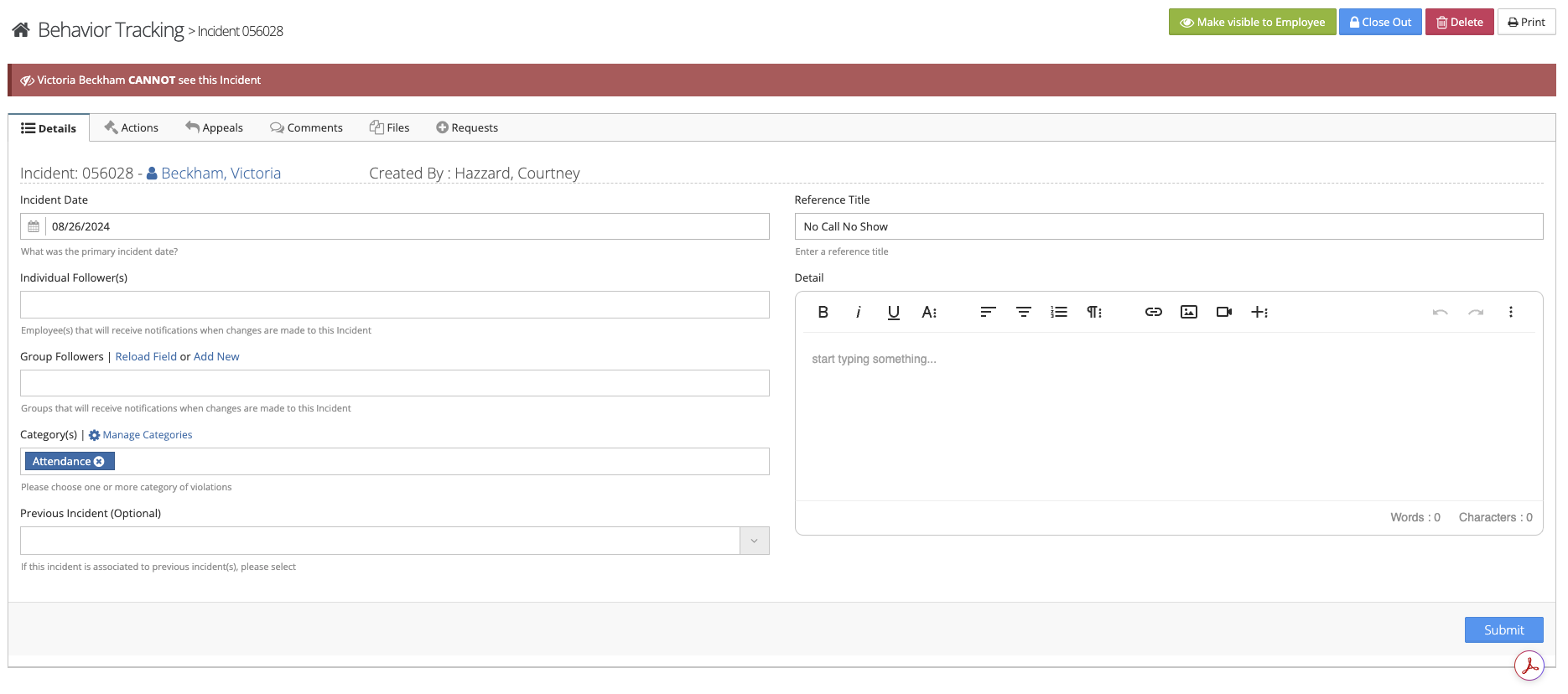
Details: Make changes to the overall incident details
Actions: This area allows you to link an action type to the incident.
Appeals: This area list any appeals to the incident entered by the employee or add an appeal on an employee's behalf
Comments: An area to enter any notes or comments
Files: Uploaded files related to this incident
Request: Assigns a task to the employee to complete for example read a specific policy.