To manage, edit, or interact with an employee's created account follow the steps below.
Step 1: Log into the VAIRKKO Platform
Step 2: Access the Administrative area by clicking 'ADMIN' in the upper right-hand corner.
Step 3: Access the 'HR Cloud' from the Administrative Toolbar
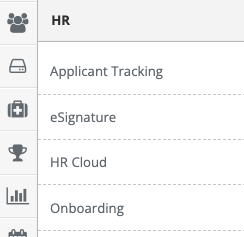
Step 4: Select the 'Manage Active' tab
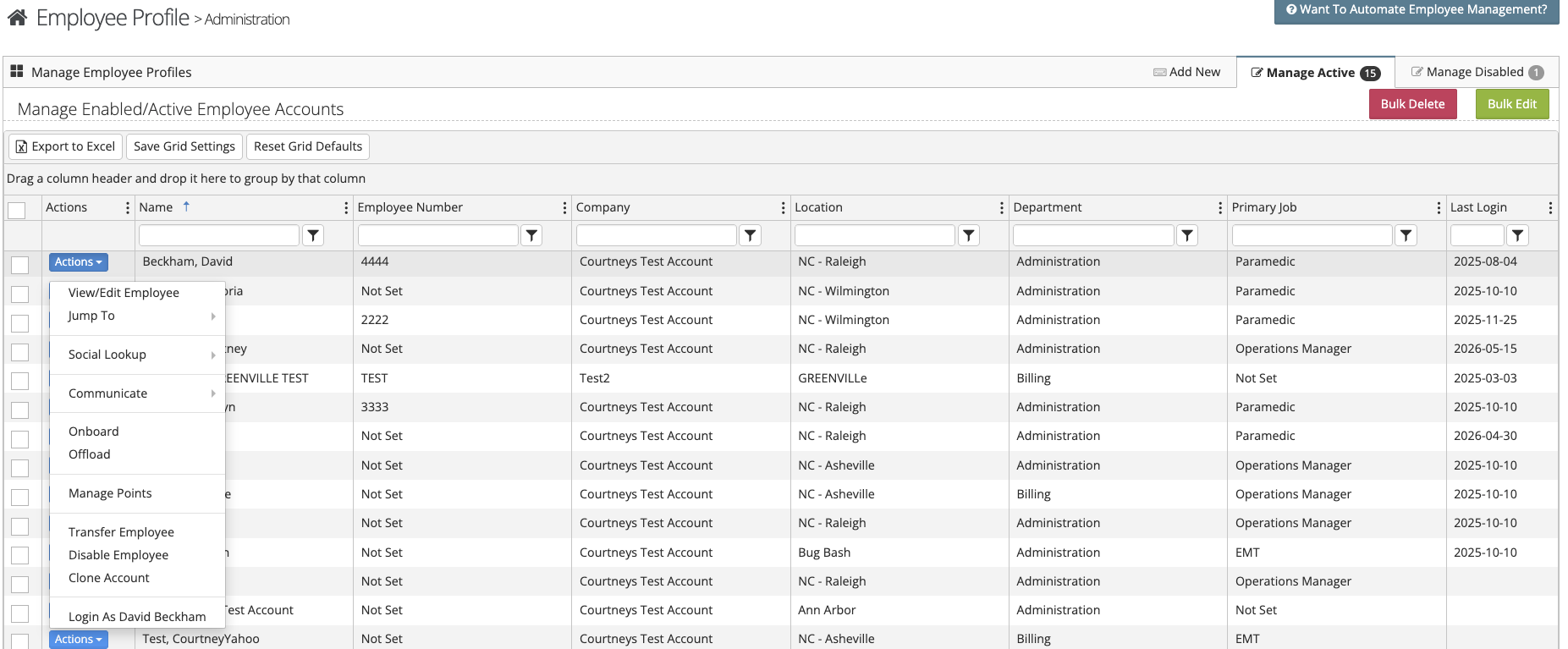
Step 5: The actions button next to the employee allows you to interact with the employee by:
- Editing the account
- Jump to a specific tab
- Perform a social look up
- Communicate with the employee via email or text message
- Create an onboarding instance
- Create an offloading instance
- Transfer an employee
- Disable an employee
- Clone the account
Step 6: Each tab within the employee's account allows you to perform different actions
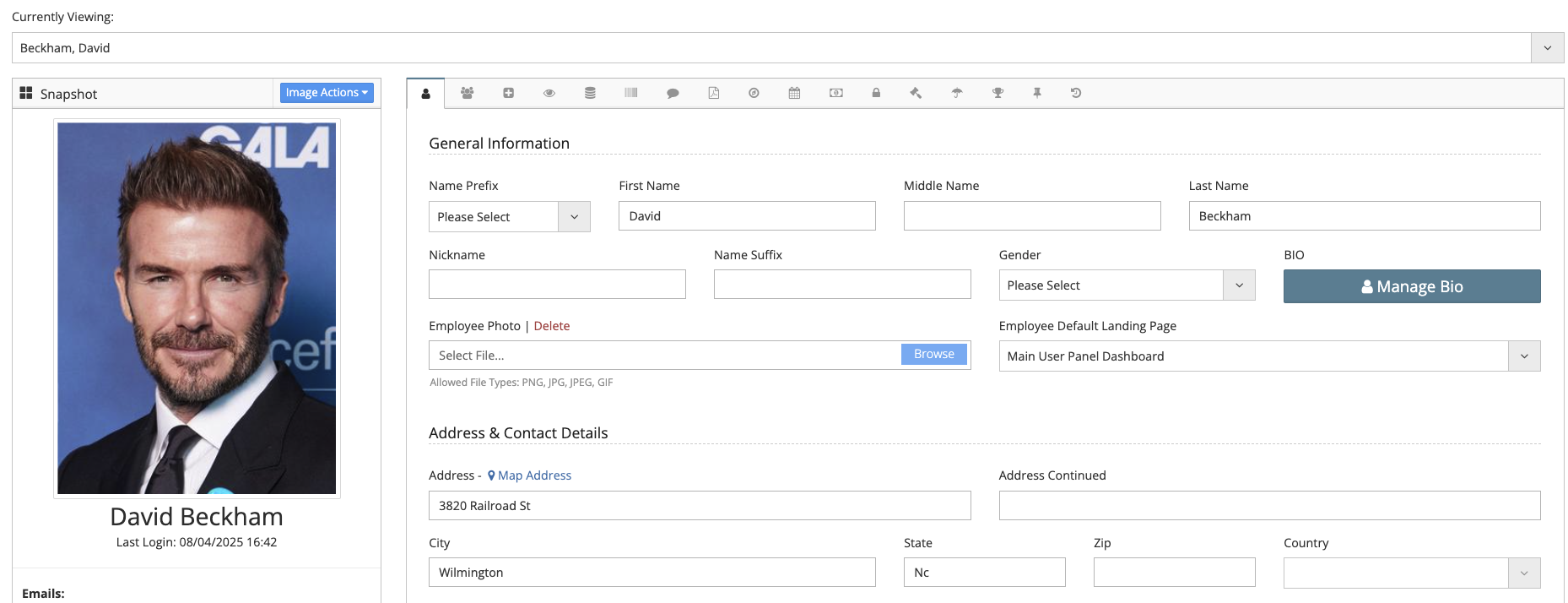
General Tab: Contains the employee's address, contact information, login name, password reset area, contact preferences, user access level, and the employee groups they belong to.
Contacts Tab: Employee's emergency contact information
Medical Tab: Stores the employee's medical information
E.C.P Tab: Is a central area for employee information
Custom Tab: Shows any custom fields
Equipment Tab: Allows you to display equipment assigned to an employee
Notes Tab: Allows you to enter notes pertinent to the employee
Docs. Tab: Displays the documents relating to the employee
HR Tab: Displays the employee's HR information
Schedule Tab: Schedule Tags, Weekly Minimum Availability, Weekly Work Limit, Monthly Work Limit, Maximum Consecutive Work Hours, Minimum Break Hours
Payroll Tab: Employee's payroll information, pay scales, and accrual information
Security Tab: Shows the employee's assigned security group. If the system is locked down by location and/or department this tab allows you to determine which locations and/or departments the employee can view other than their own
Behavioral Tracking Tab: Shows the employee's behavioral incidents and gives the ability to add an incident
Benefits Tab: Shows the benefits assigned to the employee
Awards Tab: Shows the employee's awards
Task Tab: Shows the task assigned to the employee
Employee Resume: Shows the employee's resume
Important Information
You are only charged for active accounts within the platform, each active account requires a license
Was this article helpful?
That’s Great!
Thank you for your feedback
Sorry! We couldn't be helpful
Thank you for your feedback
Feedback sent
We appreciate your effort and will try to fix the article