To configure the vehicle status type follow the steps below.
Step 1: Log into the VAIRKKO Platform
Step 2: Access the Administrative area by clicking 'ADMIN' in the upper right-hand corner.
Step 3: Access 'Fleet Cloud' from the Administrative Toolbar
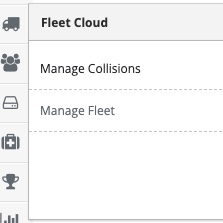
Step 4: Select 'Configure Status Levels' from the in-app menu.
Step 5: Select the 'Add Status' tab to enter a new status.
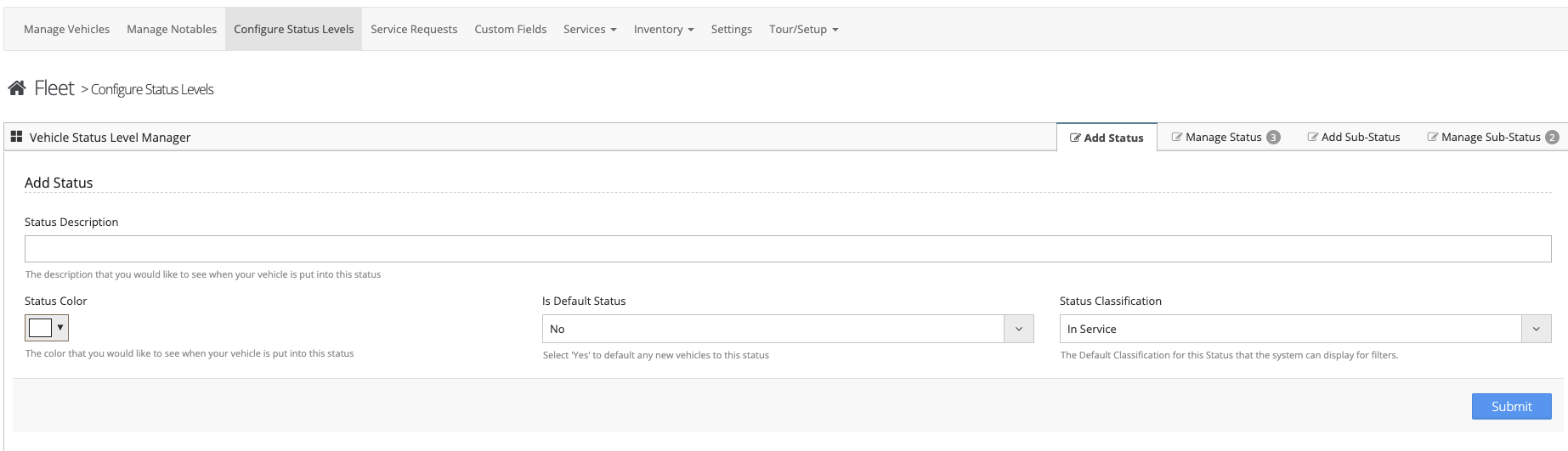
Step 6: Follow the on-screen prompts to enter a vehicle status.
Step 7: Select 'Add Sub-Status' to create a sub-status.

Step 8: Follow the on-screen prompts to configure your Sub-Status.
Examples:
Status: Out of Service
Sub-Status: At Shop
Status Classification
- In Service - This is an active status. This classification makes vehicles visible in checksheets, dashboard pods, and vehicle pick list
- Out of Service - This is an inactive status. This classification will NOT display vehicles in checksheets, dashboard pods, and vehicle pick list
- Decommissioned - This is an inactive status. This classification will NOT display vehicles in checksheets, dashboard pods, and vehicle pick list