Create a Custom PDF Certificate – Certification Cloud
When a user earns a certification, you may want to issue a customized certificate branded for your organization. This guide walks through how to design, configure, and upload a custom PDF certificate in VAIRKKO.
Requirements
- Microsoft Word (or equivalent design tool)
- Adobe Acrobat Pro (or equivalent PDF editor with fillable fields)
Part 1: Design Your Certificate
- Create your certificate in Microsoft Word (or similar program)
- Include placeholders for key information such as:
- Employee name
- Certification name
- Dates
- Organization name
- (Optional) Use built-in certificate templates in Word as a starting point
- Save your file as a DOC or DOCX
- Then select File → Save As → PDF
Part 2: Configure Fillable Fields in PDF
- Open your PDF in Adobe Acrobat
- Go to Tools → Prepare Form
- Select your saved PDF file
- Use “Add a Text Field” from the top toolbar
- Click to place fields where your placeholders are located
Required Field Names
Use the exact field names below so VAIRKKO can populate data correctly:
| Data Element | Field Name |
|---|---|
| Employee Name | fullname |
| Certification Name | certname |
| Certification Description | certdescr |
| Certification Date | certificatedate |
| Certification Expiration | certexpdate |
| Organization Name | providername |
| Certification Number | certnumber |
| Trainer | trainer |
| CEUs | ceus |
| ECEUs | eceus |
| Endorsements | endorsements |
Adjust Field Properties
- Double-click any field to edit:
- Font
- Size
- Alignment
- Use the Appearance tab for styling
Save Your Configured File
- Click Close in the toolbar
- Save the file with a new name (e.g., “Configured_Certificate.pdf”)
Important:
Use this configured version when uploading to VAIRKKO.
Part 3: Upload to VAIRKKO
- Log into the VAIRKKO platform
- Go to Admin
- Navigate to:
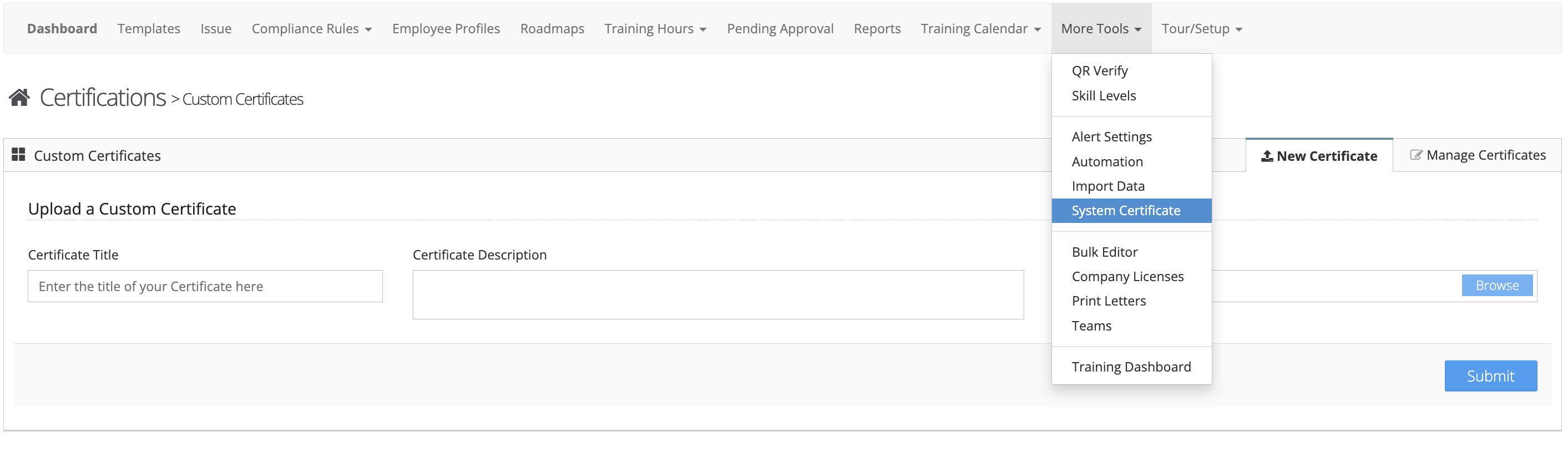
Education → Certification Cloud - Select:
More Tools → System Certificate - Upload your configured PDF
- Click Submit
Assign Your Custom Certificate
- Go to Certification Templates
- Edit the desired template
- Select your custom certificate from the Certificate Source dropdown
Additional Notes
- Multiple custom certificates can be stored in VAIRKKO
- Custom certificates will only apply to newly issued certifications
- Existing certifications will not update retroactively
Was this article helpful?
That’s Great!
Thank you for your feedback
Sorry! We couldn't be helpful
Thank you for your feedback
Feedback sent
We appreciate your effort and will try to fix the article