The QR Lookup feature allows you to verify employee certifications using either a QR code or an employee’s phone number.
Enable QR Lookup for Certification Templates
Step 1: Log In
Log into the VAIRKKO platform.
Step 2: Access Admin
Click “Admin” in the upper right-hand corner.
Step 3: Open Certification Cloud
From the Administrative toolbar, select “Certification Cloud.”
Step 4: Open Templates
From the in-app menu, select “Templates.”
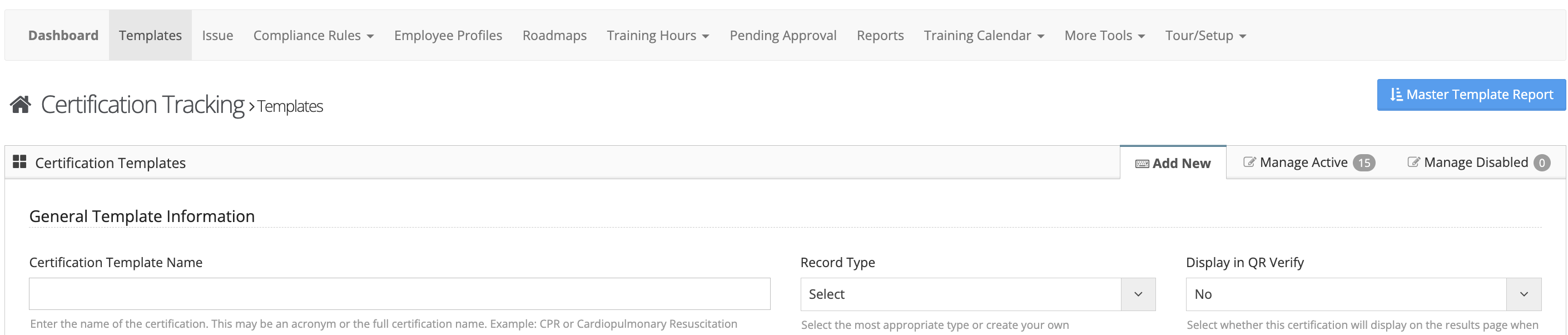
Step 5: Create a New Template
Select the “Add New” tab.
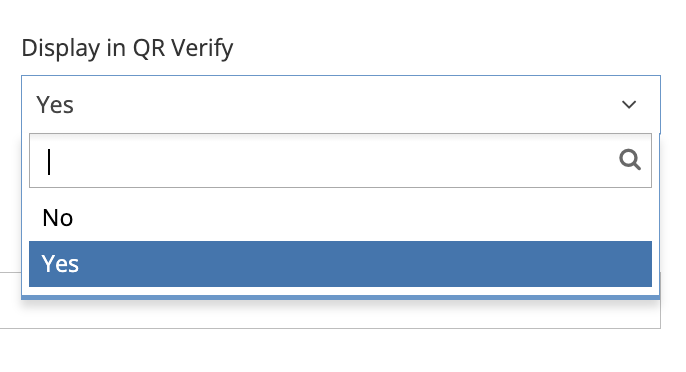
Step 6: Enable QR Lookup
When configuring the template, set:
“Display in QR Verify” = Yes
Enable QR Lookup for Existing Templates
To update an existing certification template:
- Go to the Templates area
- Select View/Edit from the Actions button next to the template
- Set “Display in QR Verify” = Yes
- Save your changes