VAIRKKO allows you to configure security access and sharing capabilities for the QR Lookup (QR Verify) feature.
How to Access QR Lookup Settings
Step 1: Log In
Log into the VAIRKKO platform.
Step 2: Access Admin
Click “Admin” in the upper right-hand corner.
Step 3: Open Certification Cloud
From the Administrative toolbar, select “Certification Cloud.”
Step 4: Open QR Verify
From the in-app menu, select “QR Verify.”
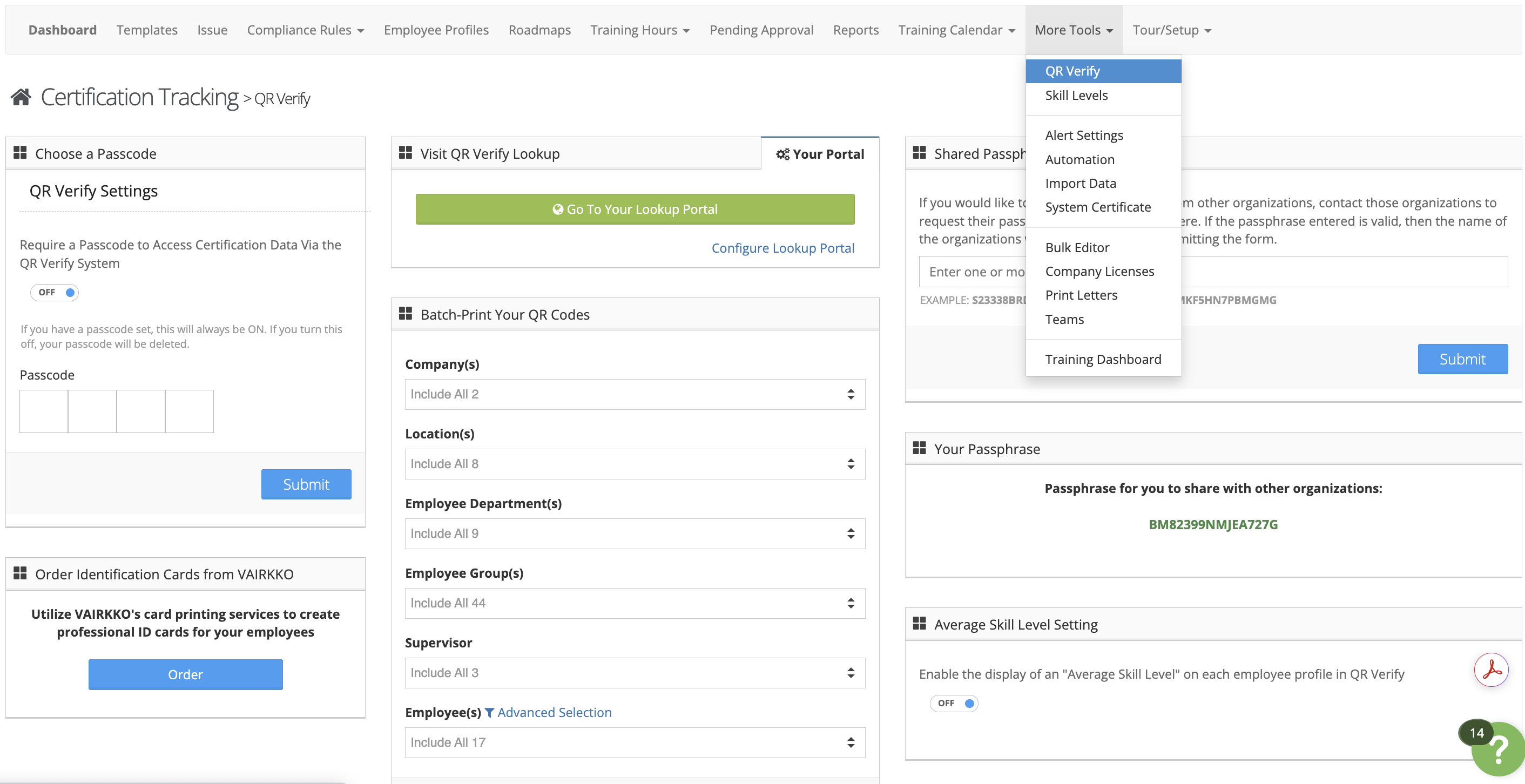
What You Can Configure
Within the QR Verify settings, you can:
- Control security access to QR Lookup
- Configure sharing capabilities
- Manage how certification data is displayed during verification
Step 5: Configure QR Lookup Settings
Follow the on-screen prompts to configure either the Passcode or Sharing options.
Passcode Settings
The Passcode feature adds an extra layer of security to the QR Lookup function.
- When enabled:
- Users must enter a passcode before viewing employee certifications
- Applies to both QR code scans and manual lookups
- When disabled:
- Anyone with access to a QR code or lookup tool can view certification details
- No passcode is required
QR Lookup Sharing
The QR Lookup feature allows you to share certification data between agencies.
To Share Your Data
- Provide another agency with your:
- Passphrase
- Passcode (if enabled)
To View Another Agency’s Data
- Enter the agency’s passphrase in the Share Data area
Was this article helpful?
That’s Great!
Thank you for your feedback
Sorry! We couldn't be helpful
Thank you for your feedback
Feedback sent
We appreciate your effort and will try to fix the article