If you are a Supervisor and have received a notification that you need to approve a Post Course Action continue reading to learn how.
Step 1: Log into the VAIRKKO Platform
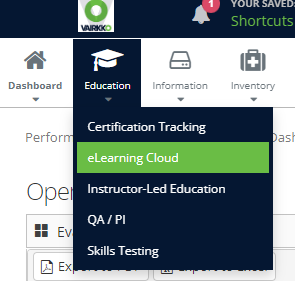
Step 2: Select 'eLearning Cloud' from the in-app menu.
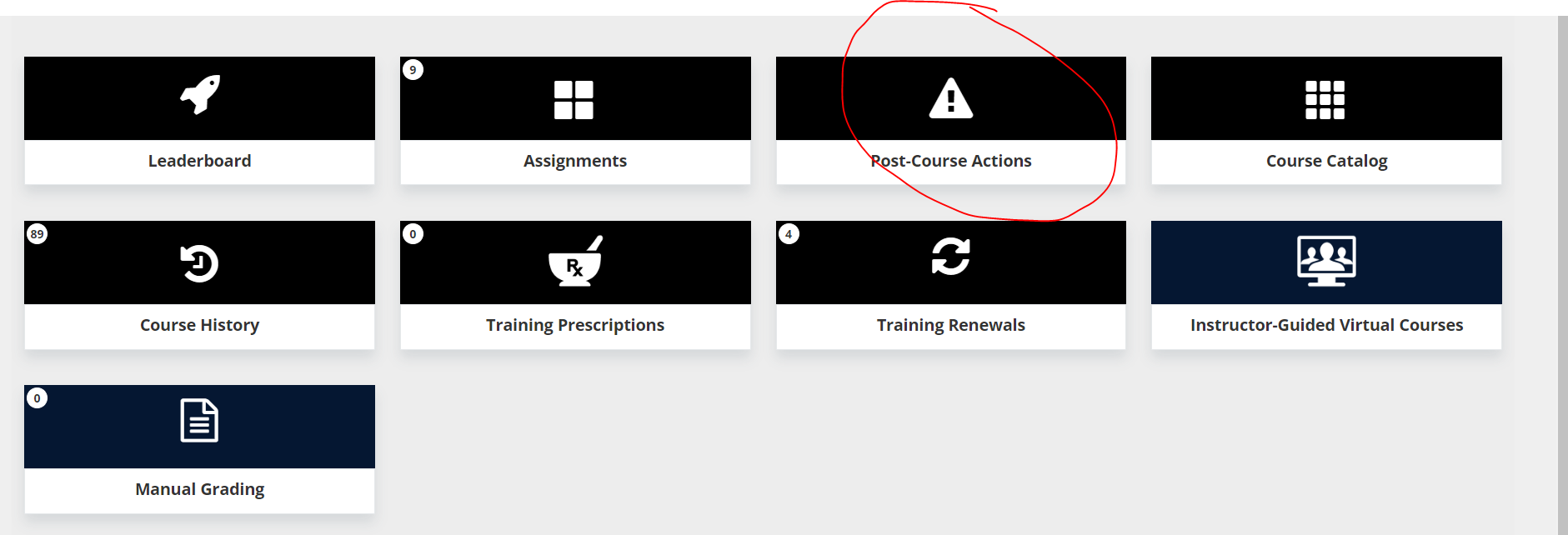
Step 3: Select the 'Post Course Actions' tile.
Step 4: Select the 'Ready for my Review' Tab

Step 5:
- Viewing Files - To view the file that was uploaded by the employee click the file name.
- Deleting the File - To delete the file uploaded by the employee click the red trashcan to the right of the file name.
- Denying the PCA - To deny the uploaded document or not approve the PCA click the 'Reject' button.
- Approving the PCA - To approve the PCA click the ' Mark for Completion' button.
- Posting a comment - To enter a comment to the employee enter the comment and click 'Post Comment'
Was this article helpful?
That’s Great!
Thank you for your feedback
Sorry! We couldn't be helpful
Thank you for your feedback
Feedback sent
We appreciate your effort and will try to fix the article