Requesting time off within the VAIRKKO Platform is a very simple process. To request time off simply follow the steps below:
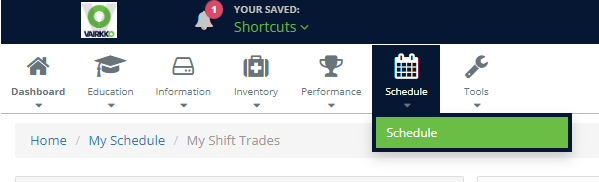
- Access your Schedule by selecting 'Schedule' from the in-app menu
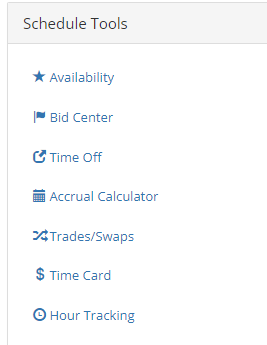
- Select the 'Time Off' off located in the Schedule Tools Area
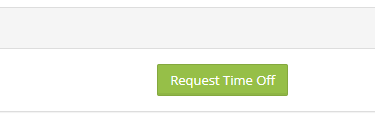
- Click the 'Request Time Off' button
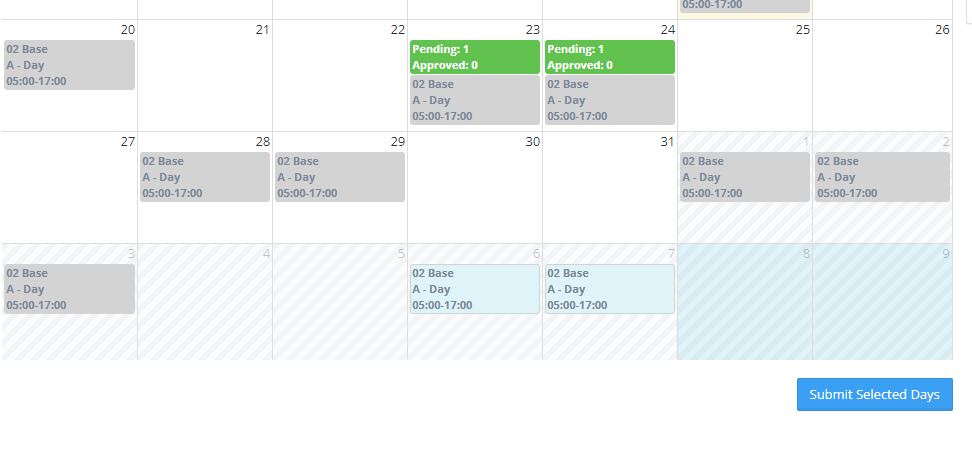
- Select the days you want off by clicking on the date and then press 'Submit Requested Days" located at the bottom of the screen.
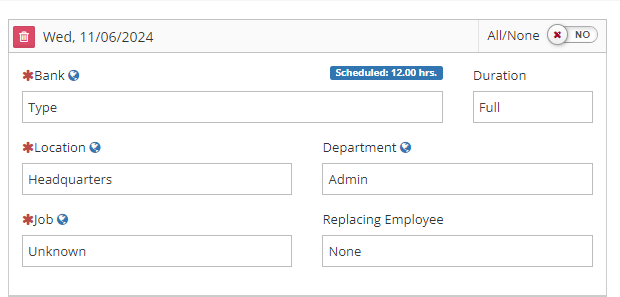
- Select the type of Request, All/None, Duration. From the 'More Options' button, you can select location, Job, Department, and if an employee is going to work for you via the drop-down boxes. After the first row is entered you can easily copy this to other rows by selecting 'Globe' beside the selection.
Additional Information
- All/None: This option means you want all your requested days off or none of them. For example, based on the screenshot above if 'All/None' was set to Yes and every day was approved except the 21st then ALL the request would be denied.
- You can Request that APPROVED Time Off be canceled by clicking the YELLOW Trash Can next to an already approved request.
- You can delete NONAPPROVED by clicking the RED trash can next to any pending request.
- TIme off restrictions will be displayed when next to the calendar when you enter your request
Was this article helpful?
That’s Great!
Thank you for your feedback
Sorry! We couldn't be helpful
Thank you for your feedback
Feedback sent
We appreciate your effort and will try to fix the article