Read below to see the differences for the schedule editors.
Step 1: Log into the VAIRKKO Platform
Step 2: Access the Administrative area by clicking 'ADMIN' in the upper right-hand corner.
Step 3: Access the 'Schedule Management' from the Administrative Toolbar
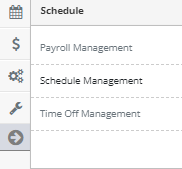
Step 4: Access the schedule by selecting your preferred editor
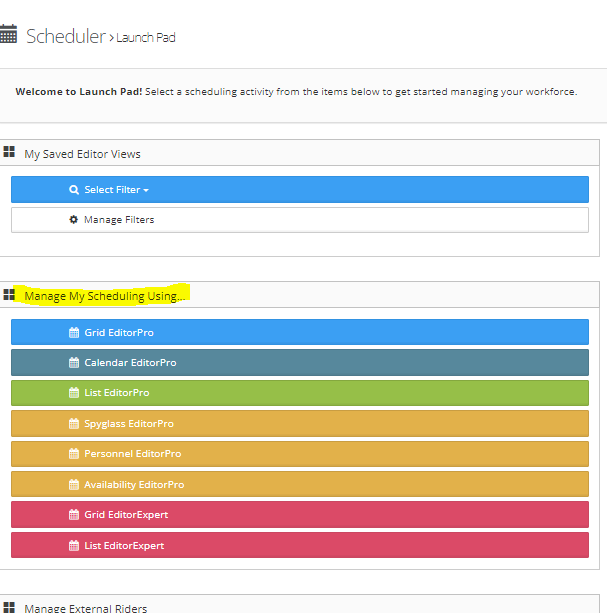
- Grid Editor Pro - Displays the Jobs vertically on the left side, dates, and employees horizontally in a grid format
- Calendar Editor Pro - Displays jobs and employees in a monthly calendar format, listing all jobs and employees in the date square
- List Editor Pro - Displays jobs and employees in a list format
- Spyglass Editor Pro - Displays the selected employee's schedule in a calendar format
- Personnel Editor Pro - Displays the employee vertically on the left side, dates, and jobs horizontally
Editor Options

- Launch Pad - Returns to the schedule launch pad
- New Slot - Adds a new ad-hoc slot to the schedule
- Reload Grid - Refreshes the job grid
- Filter - Filters the job grid by your specific entries
- Saved Filters - Load any saved filters
- Previous - Loads the previous week
- Next - Loads the next week
- Utilities - Read below
- Editors - Switch between available editors
- Back to Admin - Returns to the Administrative Dashboard
- Logout - Logs you out of the platform
Utilities
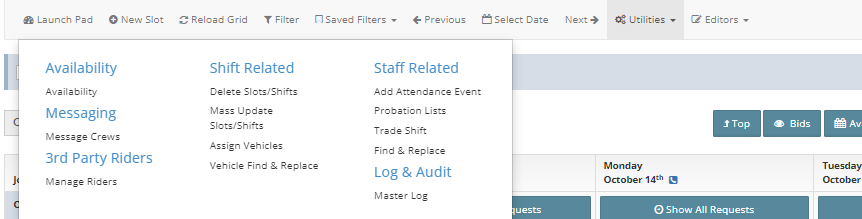
- Shift Related
- Delete Slots/Shifts - Filter and delete multiple shifts
- Mass Update Slots/Shifts - Make updates/changes to multiple slots at once
- Assign Vehicles - Assign a vehicle to a specific slot on the schedule
- Vehicle Find & Replace - Search for a specific vehicle and replace it with another
- Staff Related
- Add Attendance Event - Manually add an attendance event
- Probationary Lists - Block employees from being placed in shifts, taking shifts, etc
- Trade Shift - Initiates a swap/trade
- Find & Replace - Find a specific employee and replace with another