To configure your schedule job follow the steps below.
Step 1: Log into the VAIRKKO Platform
Step 2: Access the Administrative area by clicking 'ADMIN' in the upper right-hand corner.
Step 3: Access the 'Schedule Setup' from the Administrative Toolbar
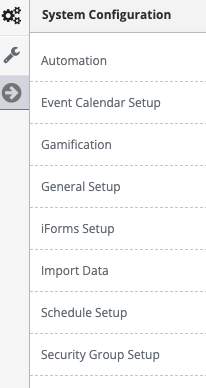
Step 4: 'Configuration' from the in-app menu

Step 5: Select 'Jobs' from the in-app menu

Step 6: Select the 'Add' tab
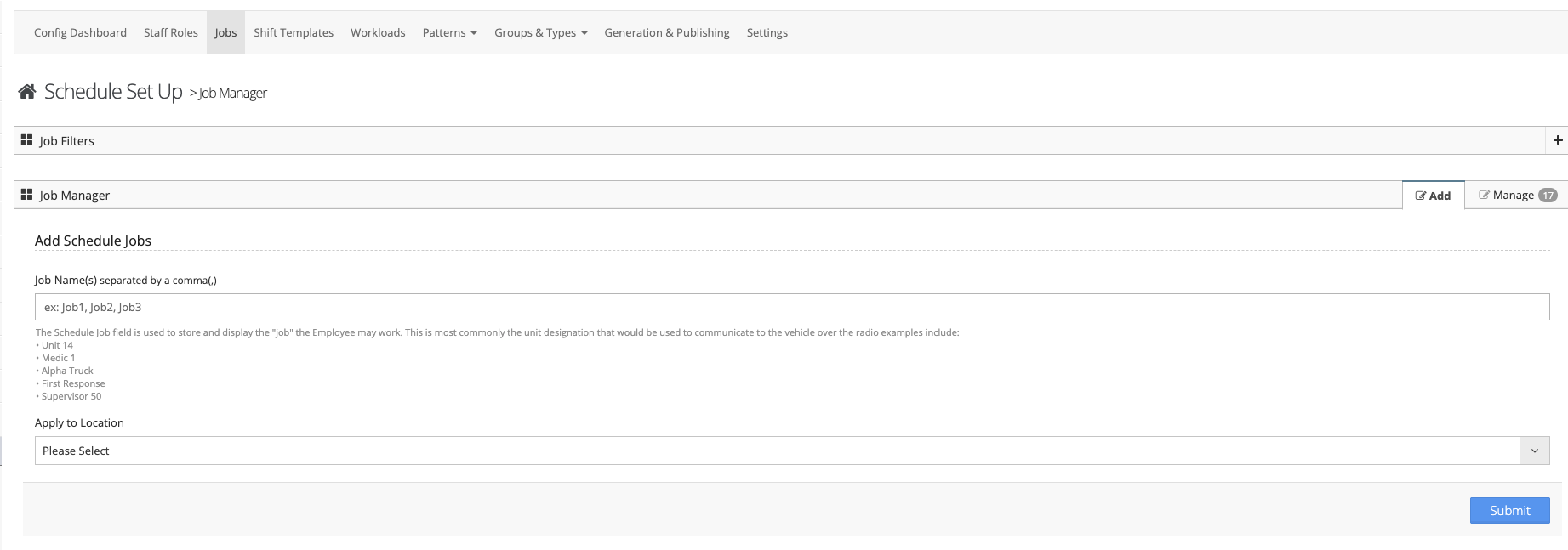
Step 7: Follow the on-screen prompts to configure your job
Managing Configured Jobs
Step 1: Click on the 'Manage' tab
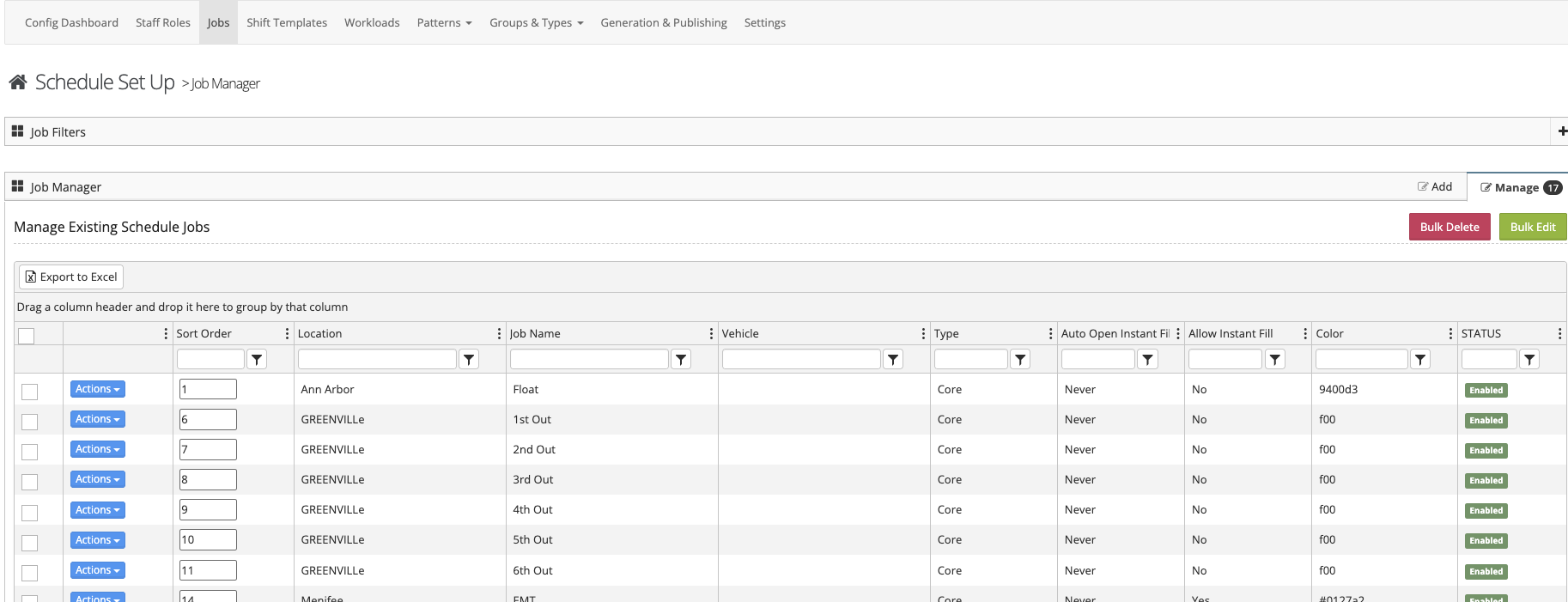
Step 2: From the manage area you can select the sort order, edit, or delete the Job from the actions button.
Open Shift Notifications
By select 'Edit Settings' from the Actions button you can configure your open shift notifications
Drop Down Boxes:
- The Sort Order Drop Down allows you to determine the order this Job shows on your Schedule.
- The Location Drop-Down allows you to change the Location of this Job.
- The Job Box allows you to edit the Job name.
- With the Vehicle Drop Down you can Mass Assign a vehicle to this Job.
- The Type Drop Down allows you to determine if this is a Core Job or Overflow.
- You can determine how far in advance open slots are convert to Instant Fill shifts with the All To Instant Fill Drop Down.
- To set all shifts to instant fill regardless of time use the Open To Instant Fill Drop Down.
- The Color Drop Down allows you to determine the Color associated to this job.
- These options can also be configured through the Edit Settings Option in the Actions Button.
Instant Fill:
If a Job is set to Instant Fill a qualified employee can place themselves into shift openings without having to get prior authorization. Shifts can also be set to become an instant fill in the future with the Instant Fill Auto Conversion feature.
Drop Down Boxes Vs Edit Settings:
Setting changes made using the Drop Down Box feature take effect immediately, changes made using the Edit Settings feature can have a take effective date entered.