Vairkko now has the option to clock in and out for unpaid breaks without creating multiple punches on their timecard. This feature will reduce the amount of time administrators spend on reviewing punches when users take unpaid breaks during their shifts. To enable this feature, you will simply need to update the settings within your shift templates.
Let’s Get Started!
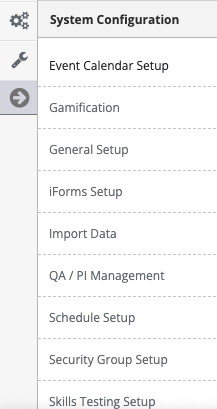
Go to “system configuration” then “schedule setup” and click on “Shift Templates” at the

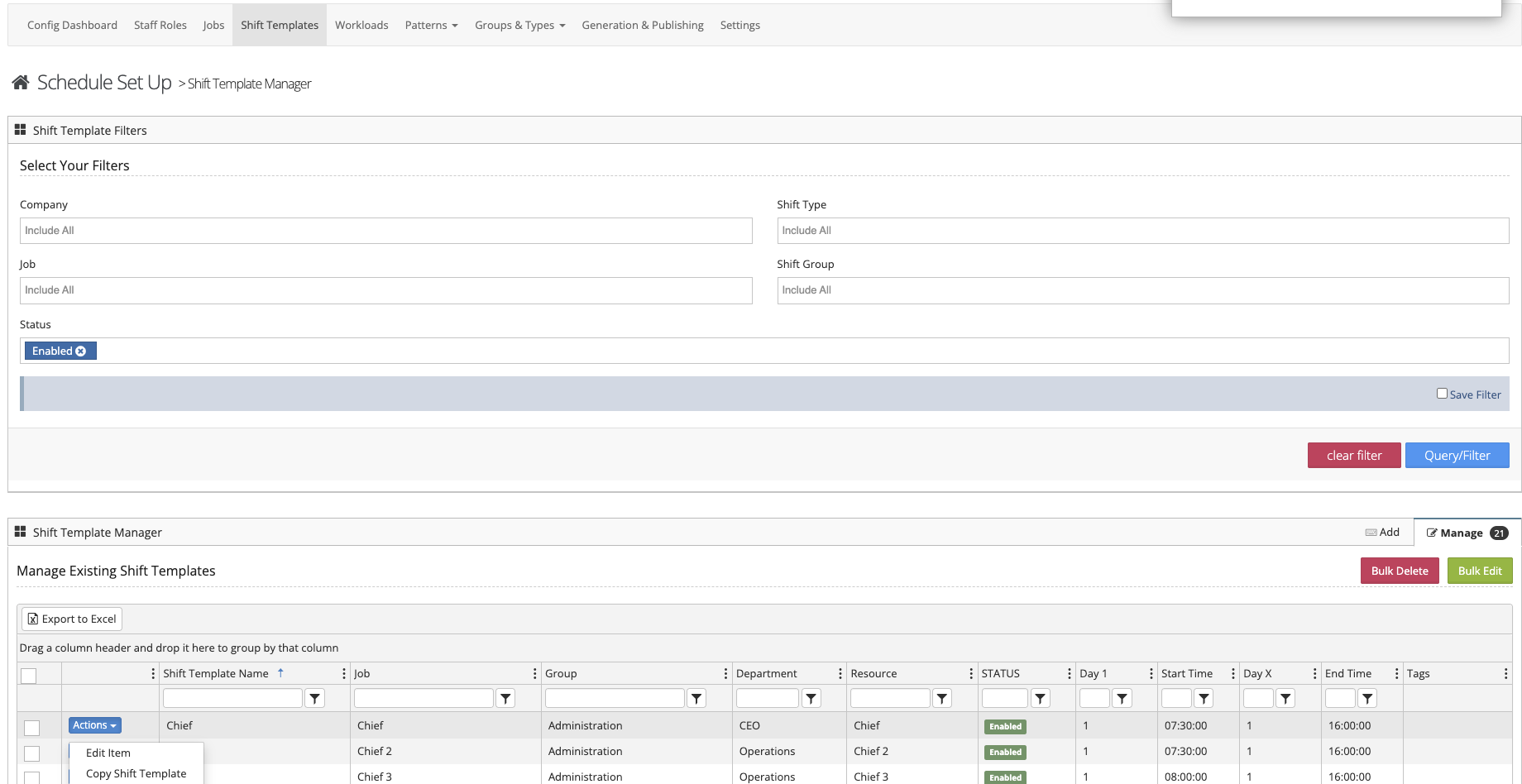
Next, select the shift template that you would like to edit and click on the “actions” button then “Edit Item”.
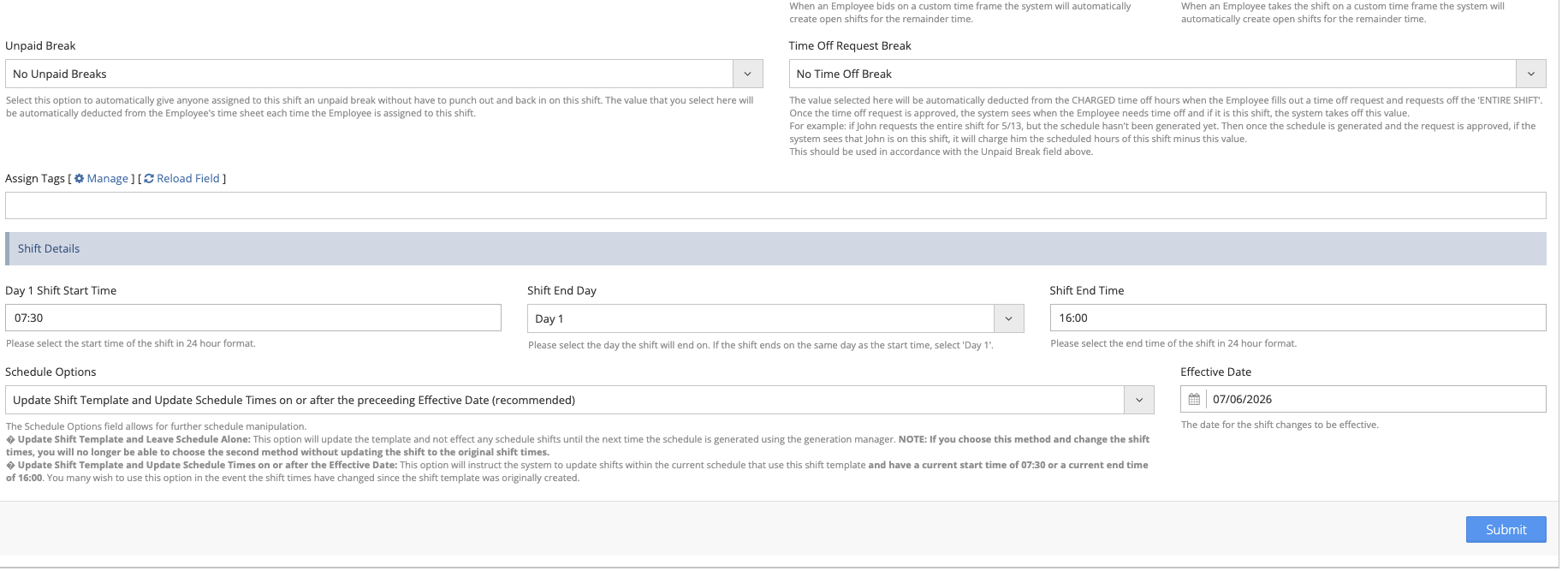
Within the shift template, scroll down to the setting for “Unpaid Break” and from the drop-down select “Use Timeclock to track Unpaid Breaks” then hit “Submit” at the bottom of the screen. This feature will now be enabled for any users working this specified shift.
Bulk Editing
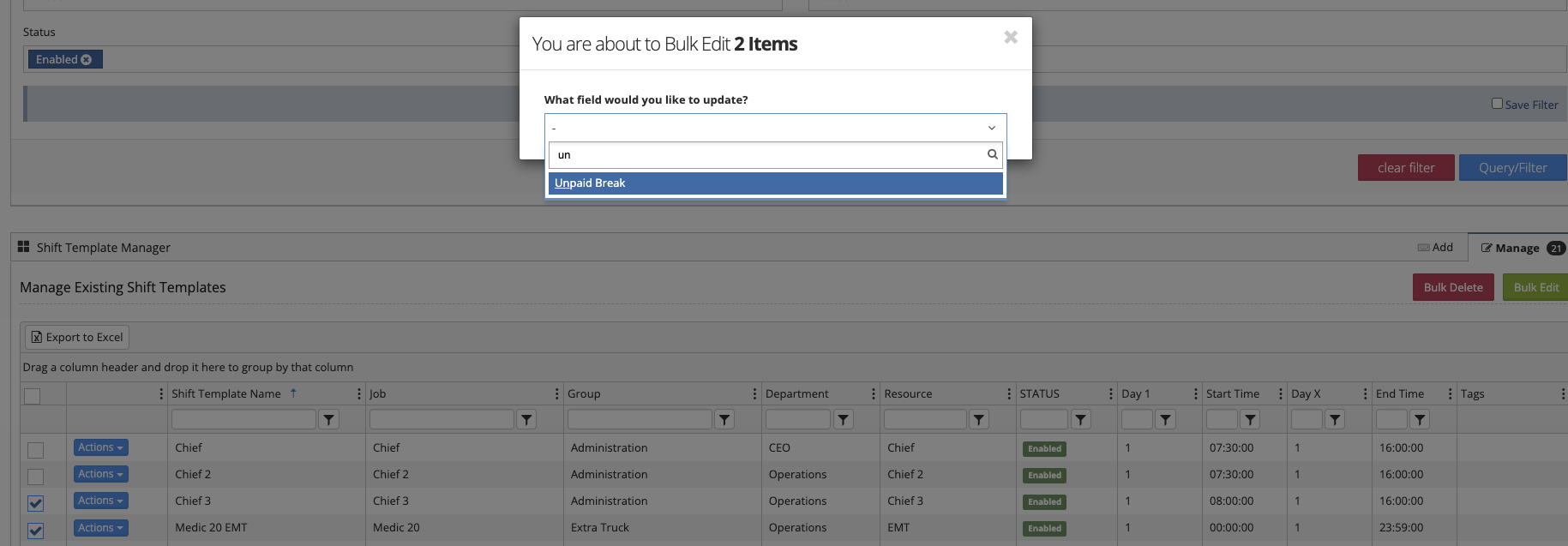
If you would like to enable this feature on multiple shift templates at once, you can use the “Bulk Edit” feature. Select the shifts on the left-hand side by checking the box next to each. Then click on “Bulk Edit” and select “unpaid break” from the drop-down menu. From here change the field to “Use Timeclock to track Unpaid Breaks” and confirm the number of templates you are bulk editing.
Once your shift template settings have been updated, the time clock will now have the break option for users working specific shifts.
Clocking In and Out
To start a break, the user will simply click on “Start Break”
To clock back in from their break the user will click on “End Break”
Timecard Management
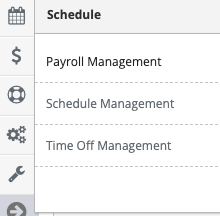
From the administrative side of the system, you can view and edit the user's break from their timecard. Go to “Schedule” and then “Payroll Management.” Select the employee from drop down menu and hit the filter button to bring up the user’s timecard.
The number of minutes the break totaled will display in the “Minutes” Box. To see the exact time of their punch in and out hover over the comment icon. The number of minutes charged can be edited as well by clicking on the “Minutes” box and changing the value.