To configure employee groups for use as email groups follow the steps below.
Step 1: Log into the VAIRKKO Platform
Step 2: Select 'Admin' in the upper right-hand corner.
Step 3: Select 'Select HR Cloud' or 'User Management' from the Administrative toolbar.
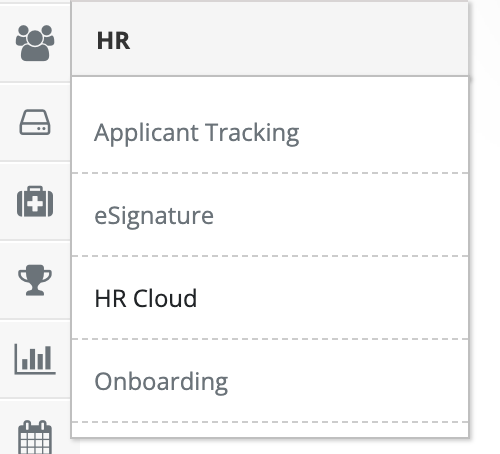
Step 4: Select 'Groups' from the in-app menu

Step 5: Select 'Add New' to create your Employee Group.
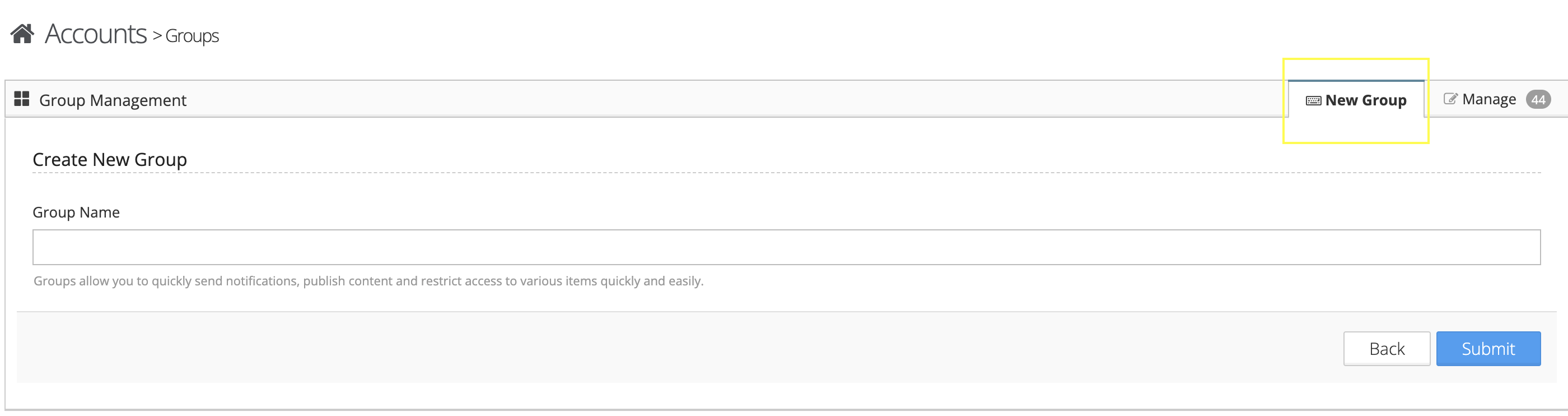
Step 6: Follow the on-screen prompts to create your group.
To interact with groups you have created follow the steps below.
Step 1: Select the 'Manage' tab
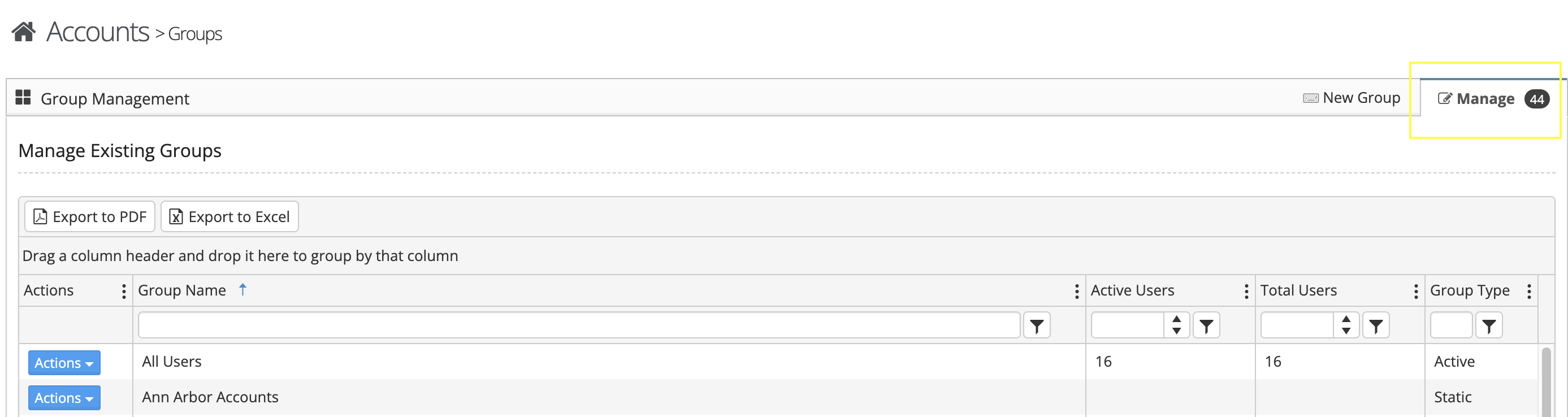
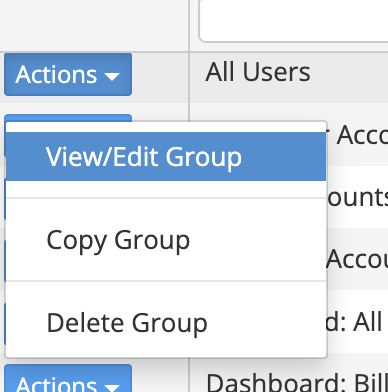
Step 2: From the actions button next to the group you can copy the group, view/edit the group, or delete the group.
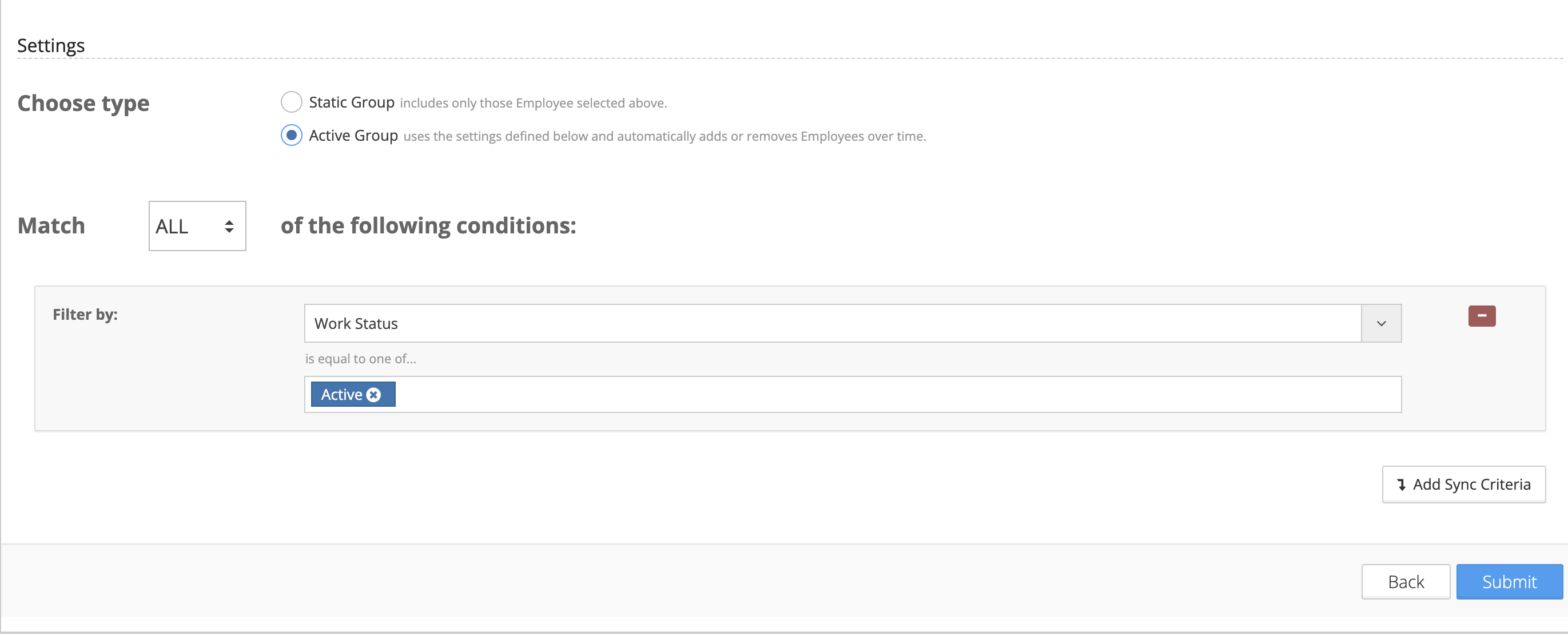
Active Groups:
With active groups, you can easily tell the VAIRKKO Platform which Locations, Departments, or Job Titles to link to this group. For example, you can create a group called 'Administrative Assistants' you can then sync by all locations and departments with the Administrative Assistant job title. This will automatically add anyone to this group that meets those criteria.
Was this article helpful?
That’s Great!
Thank you for your feedback
Sorry! We couldn't be helpful
Thank you for your feedback
Feedback sent
We appreciate your effort and will try to fix the article