When a user completes an eLearning course, you can issue a custom certificate that includes their course details. This guide walks through how to design, configure, and upload a custom PDF certificate in VAIRKKO.
Requirements
- Microsoft Word (or equivalent design tool)
- Adobe Acrobat Pro (or equivalent PDF editor with fillable fields)
Part 1: Design Your Certificate
- Create your certificate in Microsoft Word (or similar program)
- Include placeholders for key information such as:
- Employee name
- Course name
- Completion date
- CE hours
- (Optional) Use built-in certificate templates in Word as a starting point
- Save your file as a DOC or DOCX
- Then select File → Save As → PDF
Part 2: Configure Fillable Fields in PDF
- Open your PDF in Adobe Acrobat
- Go to Tools → Prepare Form
- Select your saved PDF file
- Use “Add a Text Field” from the top toolbar
- Click to place fields where your placeholders are located
Required Field Names
Use the exact field names below so VAIRKKO can populate data correctly:
| Data Element | Field Name |
|---|---|
| Employee Name | fullname |
| Course Name | coursename |
| CEU Total Amount | ceu |
| Certificate Issue Date | certificatedate |
| Course Number | coursenumber |
| Course Description | coursedescription |
| Course Topics | coursetopics |
| Passing Score Required | passingpercent |
| Employee Test Score | testscore |
| Renewal Date | renewaldate |
Adjust Field Properties
- Double-click any field to edit:
- Font
- Size
- Alignment
- Use the Appearance tab for styling
Save Your Configured File
- Click Close in the toolbar
- Save the file with a new name (e.g., “Configured_Certificate.pdf”)
Important:
Use this configured version when uploading to VAIRKKO.
Part 3: Upload to VAIRKKO
- Log into the VAIRKKO platform
- Go to Admin
- Navigate to:
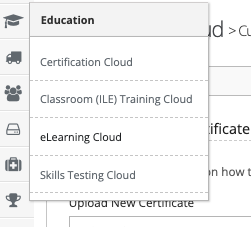
Education → eLearning Cloud - Select:
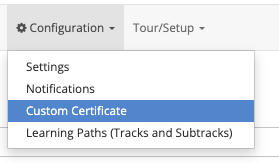
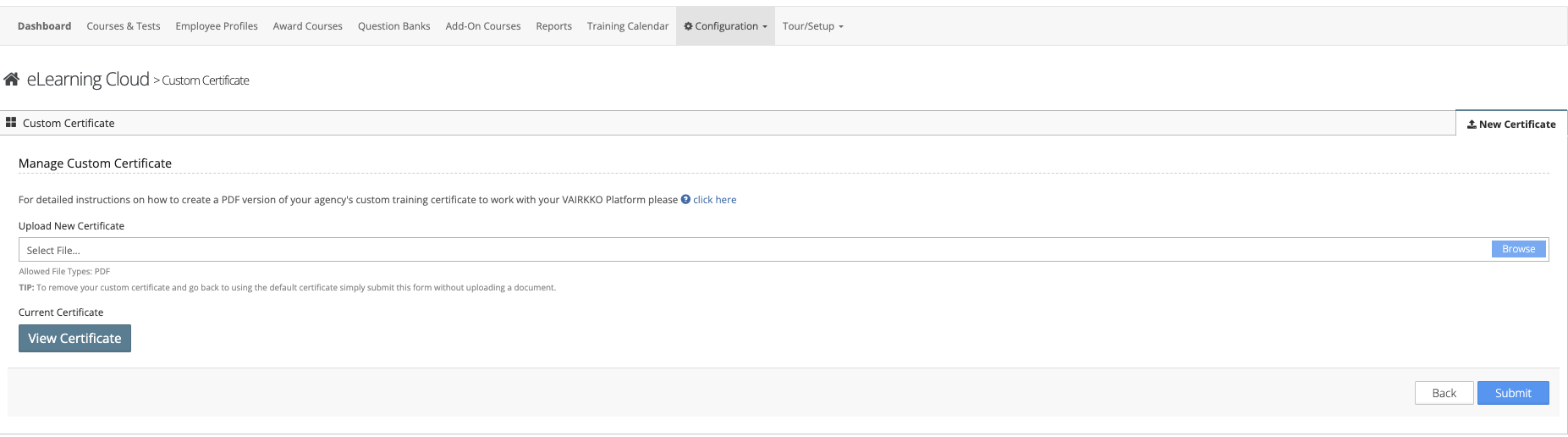
Configuration → Custom Certificate - Upload your configured PDF
- Click Submit
Additional Notes
- Custom certificates will apply to new course completions only
- Existing certificates will not be updated retroactively
Was this article helpful?
That’s Great!
Thank you for your feedback
Sorry! We couldn't be helpful
Thank you for your feedback
Feedback sent
We appreciate your effort and will try to fix the article