This guide outlines how to create a custom confirmation email that is sent to students when they register for a classroom training session within the VAIRKKO platform.
Navigation Path
Admin > Classroom (ILE) Training Cloud > Sessions > Confirmation Email
Instructions
Step 1: Log into VAIRKKO
Log into the VAIRKKO platform using your credentials.
Step 2: Access the Admin Area
Click “ADMIN” in the upper right-hand corner of the screen.
Step 3: Open Classroom (ILE) Training Cloud
From the administrative toolbar, select Classroom (ILE) Training Cloud.
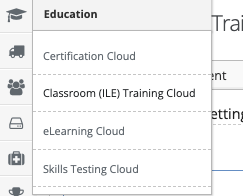
Step 4: Navigate to Sessions
Select “Sessions” from the in-app menu.
Step 5: Open Confirmation Email Settings
Within the session configuration area, select “Confirmation Email.”
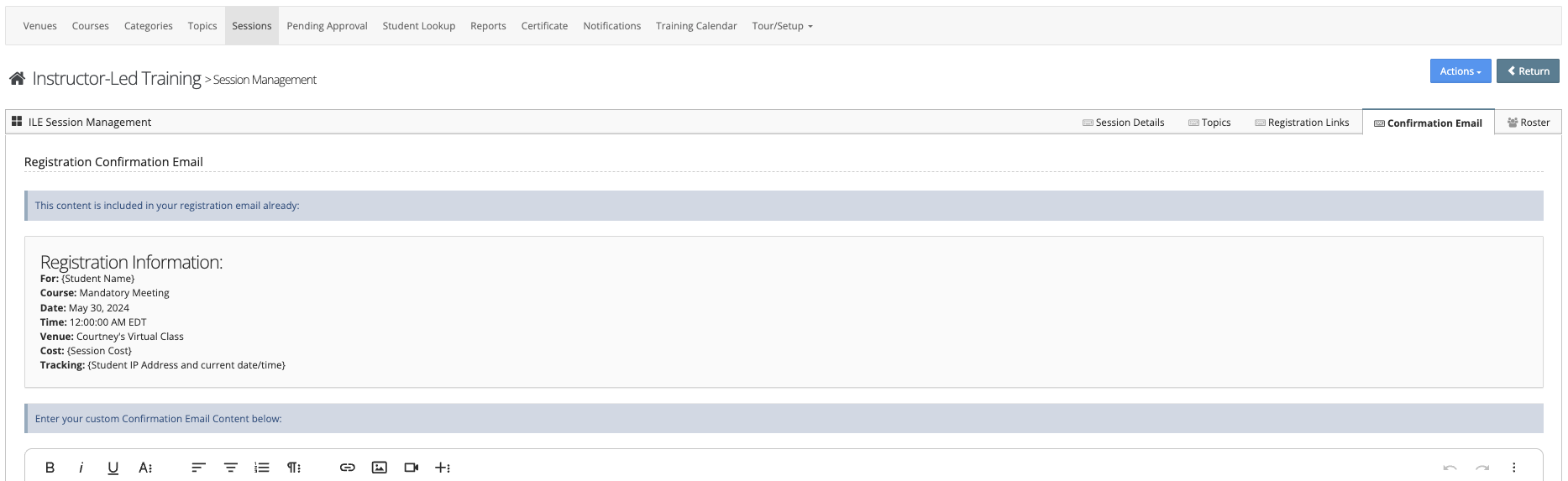
Step 6: Create Your Custom Email
From this section, you can create a custom email that will be sent when a student registers for the class.
You may include:
- Registration details
- Instructions for attendance
- Payment links
- Additional resources or notes
Step 7: Save Changes
Be sure to click Save to apply your updates.
Notes
- This email is sent automatically upon registration for the selected session.
- Customization is session-specific.
- Ensure all links (such as payment links) are active and correct before saving.
Was this article helpful?
That’s Great!
Thank you for your feedback
Sorry! We couldn't be helpful
Thank you for your feedback
Feedback sent
We appreciate your effort and will try to fix the article