To configure staff roles follow the steps below.
Step 1: Log into the VAIRKKO Platform
Step 2: Access the Administrative area by clicking 'ADMIN' in the upper right-hand corner.
Step 3: Access the 'Schedule Setup' from the Administrative Toolbar
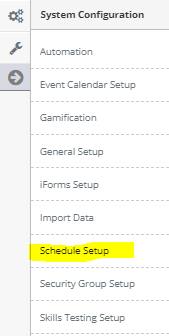
Step 4: 'Configuration' from the in-app menu

Step 5: Select 'Staff Roles' from the in-app menu

Step 6: Select the 'Add' tab to enter your new staff role
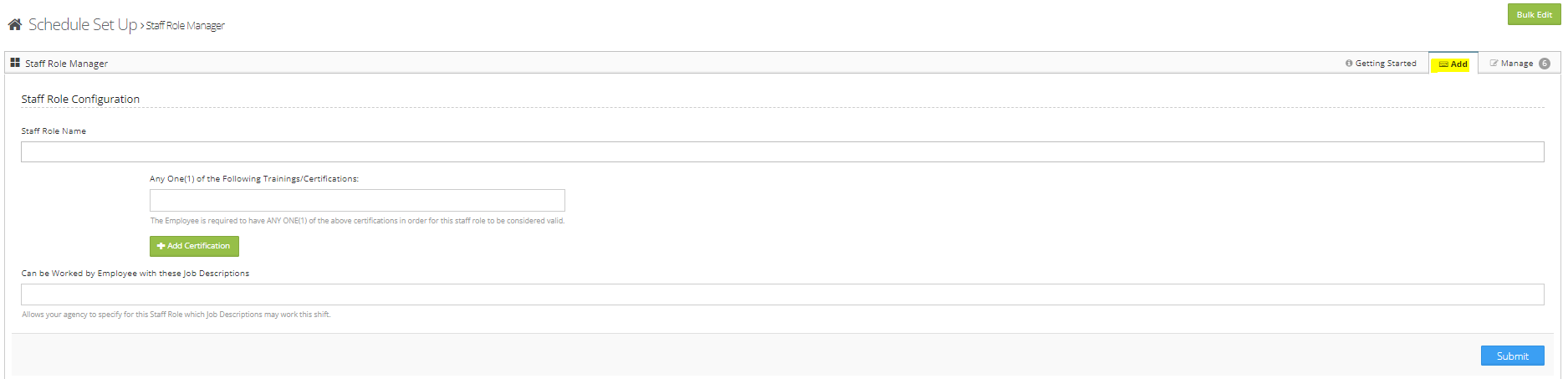
Step 7: Follow the on-screen prompts to enter your new staff role
Managing Created Staff Roles
Step 1: Click on the 'Manage' tab

Step 2: From the manage area you can select the sort order, edit, or delete the role from the actions button.
Qualifying for Staff Roles:
If the selection box contains one certification an employee must possess that certification to qualify for the Staff Role. If the selection box contains two or more certifications an employee must possess one of the certifications to qualify for the Staff Role.
Example of Qualifying for Staff Role:
If the first box contains just the Drivers Licenses certification the employee must possess this certification to qualify for the Staff Role. If the next box contains the CPR certification and CPR Instructor certification the employee must possess one of the certifications to qualify for the Staff Role.
Example of Staff Role Names:
Paramedic
Any Level
Crane Operator
ETC