To send an Inbox message to employees follow the steps below.
Step 1: Log into the VAIRKKO Platform
Step 2: Access the Administrative area by clicking 'ADMIN' in the upper right-hand corner.
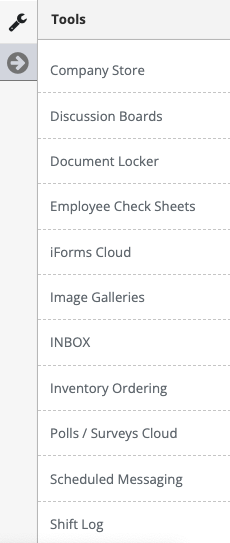
Step 3: Access the 'Inbox' from the Administrative Toolbar
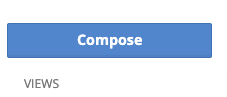
Step 4: Select the 'Compose' button to open the message interface
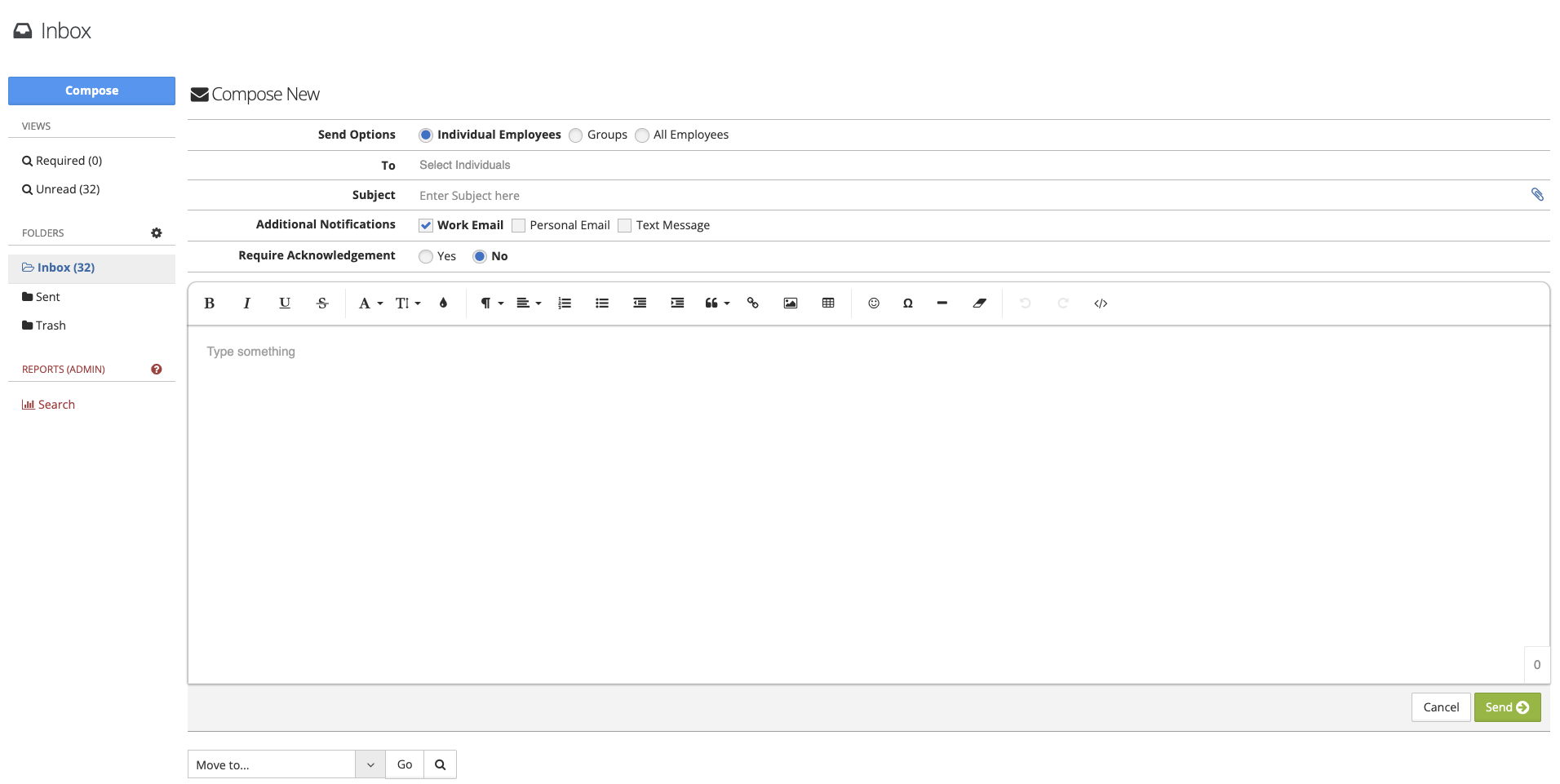
Step 5: Configure the message interface to send your message.
Adding Attachments
To add an attachment to your inbox message select the paperclip to the right of the Subject Line
After selecting the paperclip to attach your file by dragging it into the stripped area or clicking the stripped area to search for your file.
Required Acknowledgement
If this is set to 'Yes' an employee must read and acknowledge the Inbox message prior to accessing any other areas within the VAIRKKO Platform.
Was this article helpful?
That’s Great!
Thank you for your feedback
Sorry! We couldn't be helpful
Thank you for your feedback
Feedback sent
We appreciate your effort and will try to fix the article